
Mailgun
Updated 2 weeks ago
For the complete documentation index, see llms.txt. This page is also available as Markdown.
Mailgun
To send system-generated emails from an address on your organization's domain, verify the domain in Email & sender and use Gratona's managed authenticated sending, with no separate Mailgun account needed. This page covers the alternative: connecting your own Mailgun account, which remains available when you prefer to manage your own Mailgun account. Visit their website at http://www.mailgun.com/ to get started. We use Mailgun for our transactional emails because it offers our clients an affordable way to ensure your emails are delivered. Mailgun offers up to 100 emails per day for free. For sending beyond that, see Mailgun's current plans and limits on their website.
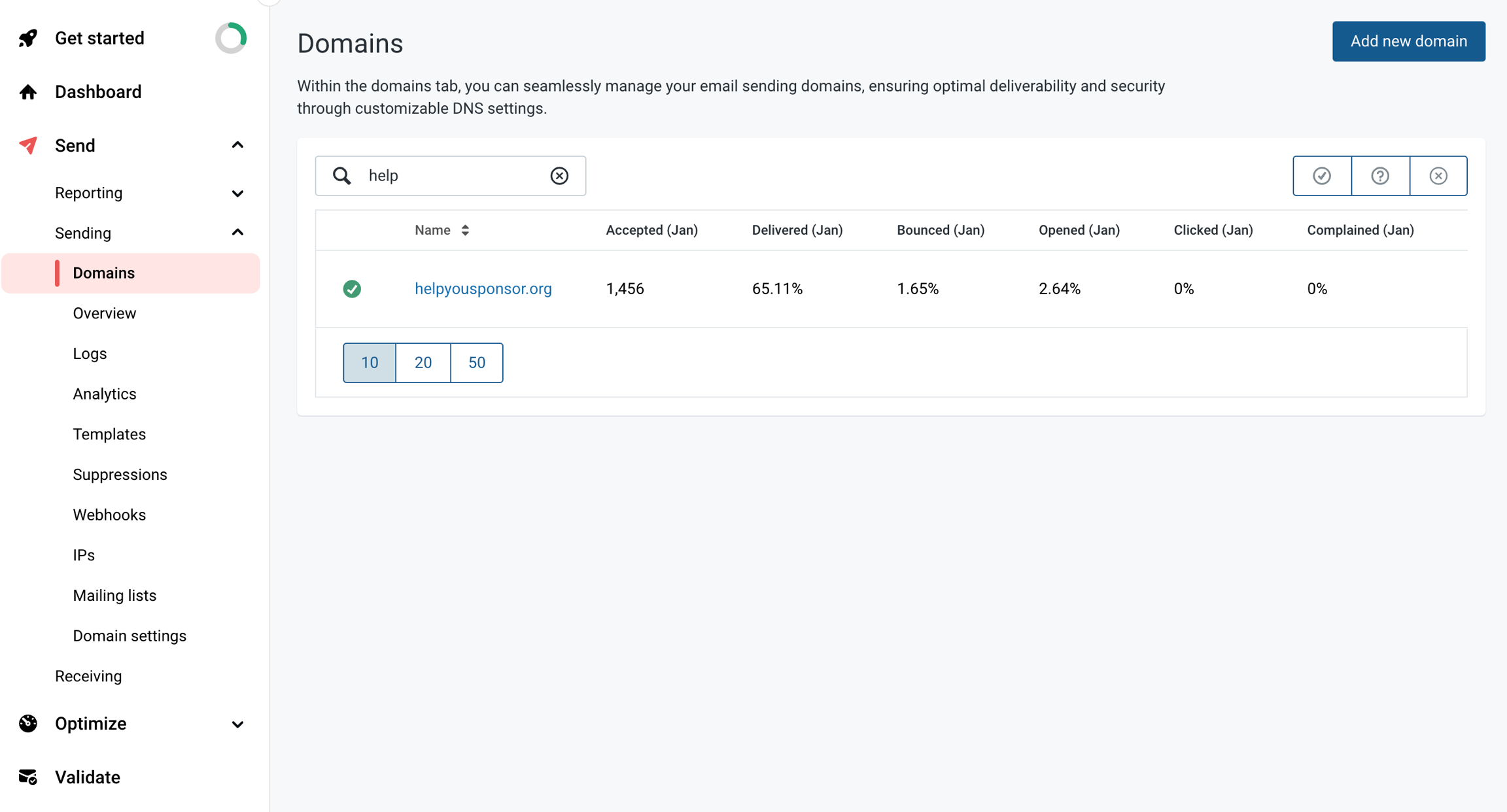
Once you have created your Mailgun account and logged in, click on "Send" on the side menu to expand and show more options then click on "Sending" and select "Domains". Click on the URL under the Name column in the domains table. Alternatively, if you do not have a custom domain set up, you can use the Mailgun Subdomains option.
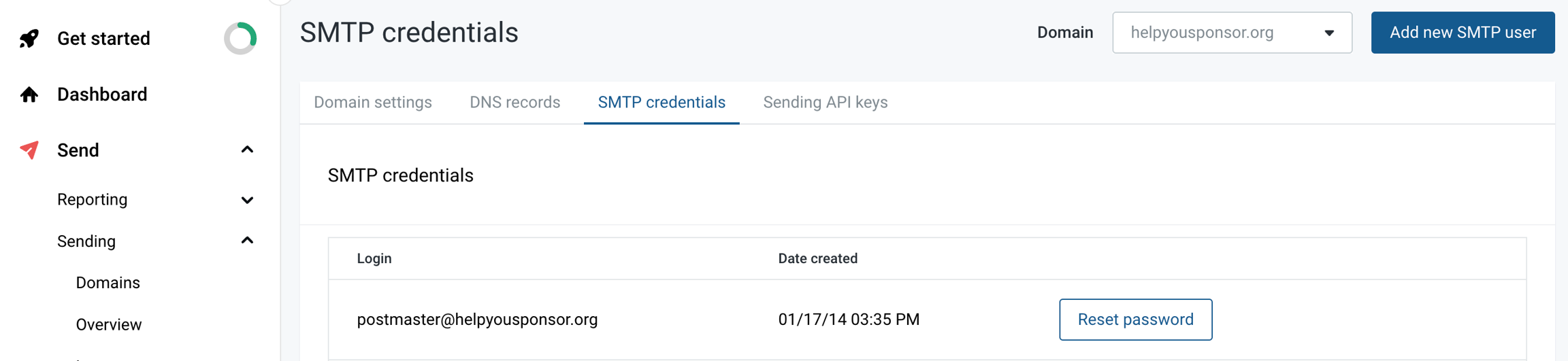
Once you click on the domain name, you’ll be redirected to a page displaying your domain Information. To get the SMTP credentials click on the SMTP credentials tab. If you do not remember the password, you can use the option of resetting the password.
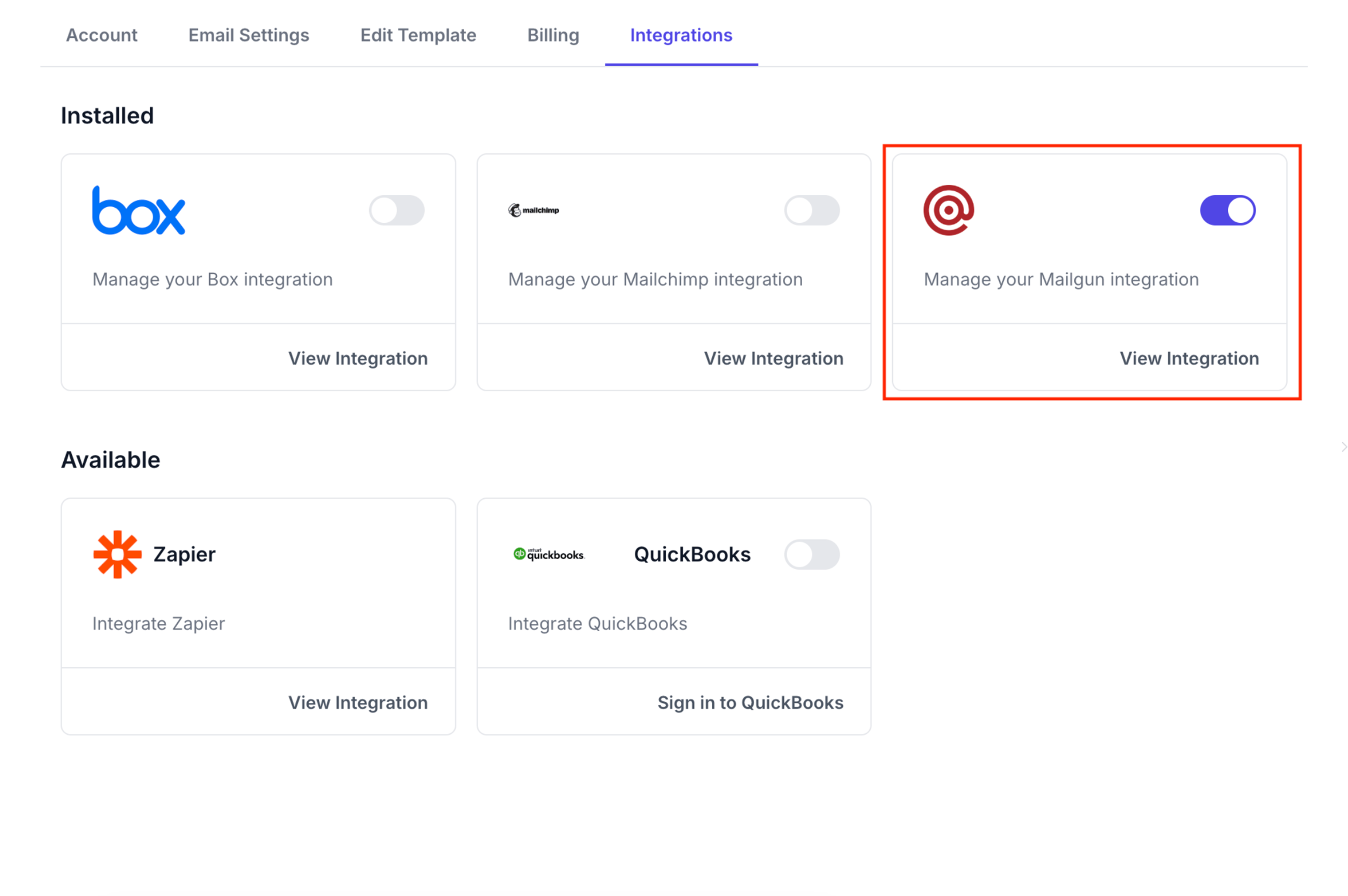
To fill in your Email Settings, open the account menu, select Organization settings, then select Email & sender.
Enter your Mailgun details under Mailgun delivery.
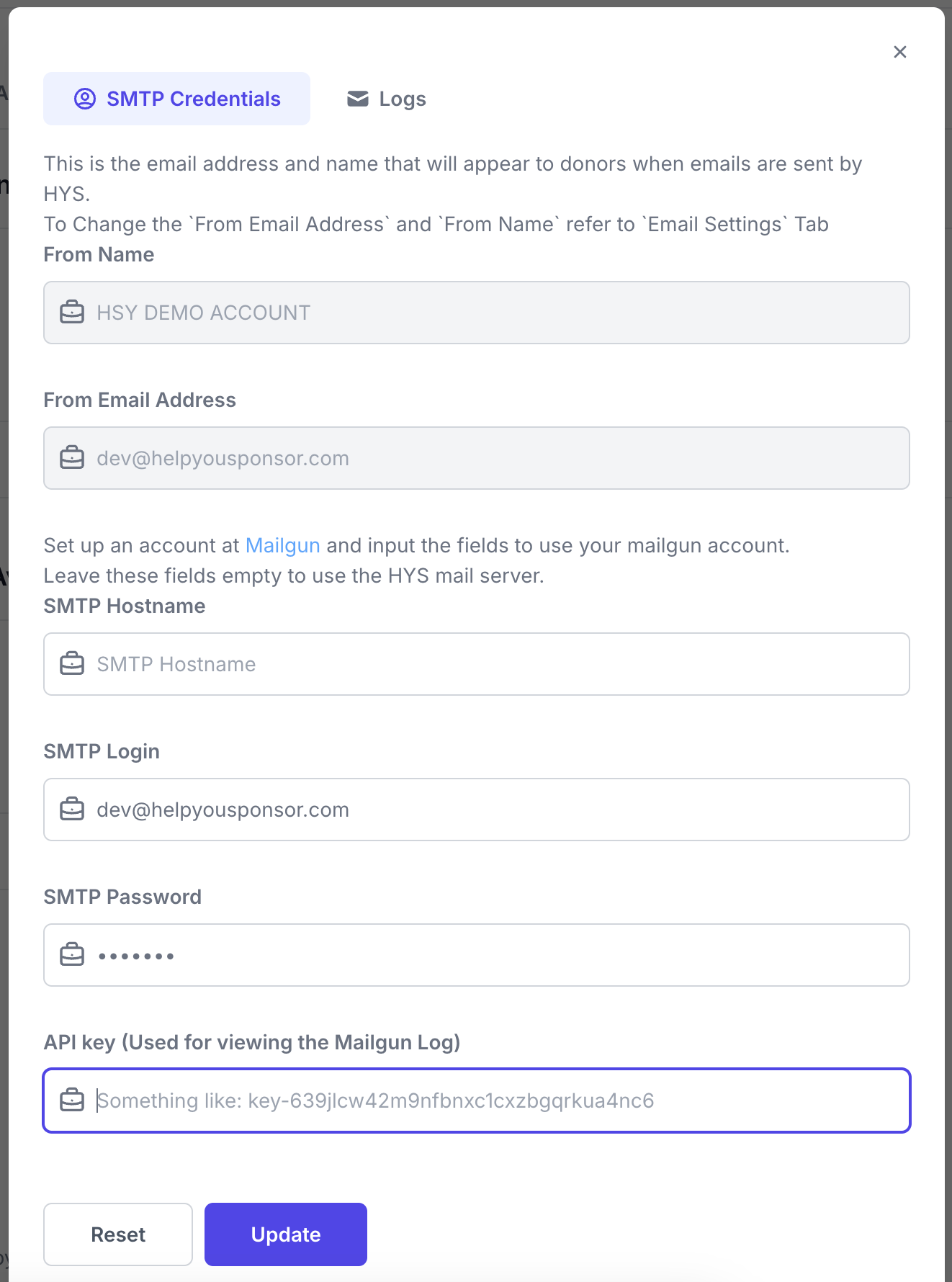
The From Name and From Address should be your organization’s name and email address. The hostname is the SMTP hostname, the login is the Default SMTP Login, and the password is the Default Password from Mailgun.
Once you’ve filled in all the information, select Save Mailgun. Now, HelpYouSponsor will send emails through your Mailgun account.