
Customization Options
Updated 2 weeks ago
ADVANCED FEATURES
Customization Options
Gratona offers extensive customization capabilities that allow you to align the platform's appearance with your organization's branding. These customization options ensure a consistent and professional look across all your donor-facing interfaces.
Theme Color Configuration
The Theme Color Configuration system allows you to customize the visual appearance of your donor-facing pages and forms without any coding knowledge.
To change the color theme for a program's donor-facing page, from the Programs list select the program and choose Website & Embed, then open Appearance.
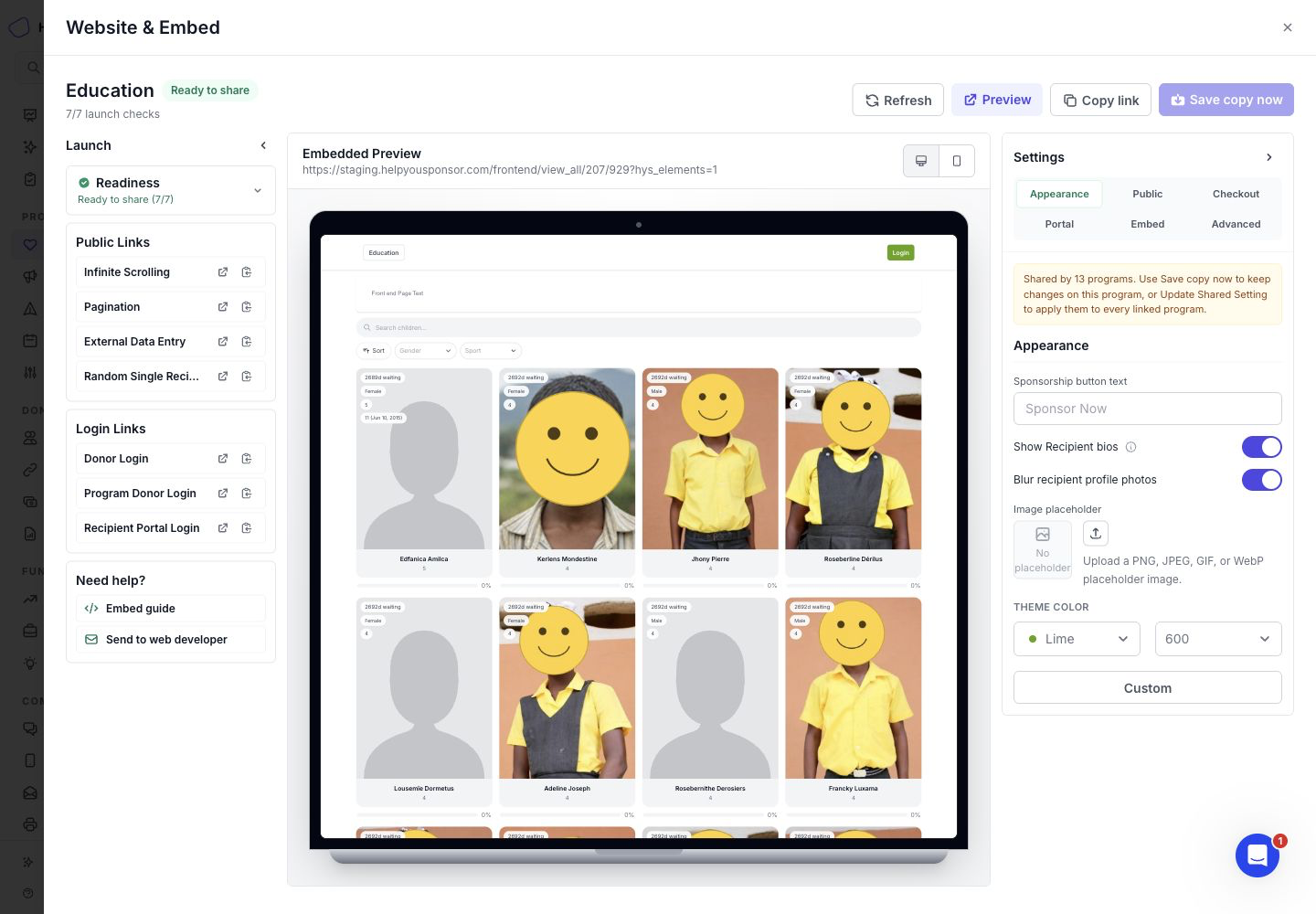
Use Website & Embed to preview donor-facing pages and update appearance settings.
The Appearance section shows the theme controls and a preview of the public page.
Choose a preset accent color and shade, or use the color picker or Hex color field to enter your exact brand color. A custom color uses a six-digit hex value such as #3b82f6; the Shade control is unavailable while a custom color is selected.
If Program accent offers Use organization default and Customize this program, select Customize this program to set a program-specific color. Use organization default to inherit the organization color and future updates.
Your selections update the draft. Select Save changes to apply them. If the website setting is shared by several programs, select Save a copy to keep the change on the current program.
To intentionally change every program using the shared setting, open Advanced and use Update Shared Setting. Review the listed programs and changes before confirming.
After saving, review the donor-facing page preview.