
Notification Preferences
Updated 2 weeks ago
Notification Preferences
Notification Preferences let each person choose which Gratona updates they want to receive. Admin preferences control the updates that appear in that admin's notification bell and pop-up notifications, plus mention emails where offered. Donors manage their own communication preferences from the donor portal.
Notification preferences are personal. Changing your preferences does not change another admin's preferences, another donor's preferences, or the Activity Log.
Open Admin Notification Preferences
Use admin notification preferences when you want to choose which in-app updates appear for you.
Open Profile from the account menu.
Select Notification preferences.
You can also open the account menu and select Notification preferences directly. The current admin route is /app/profile/notifications.
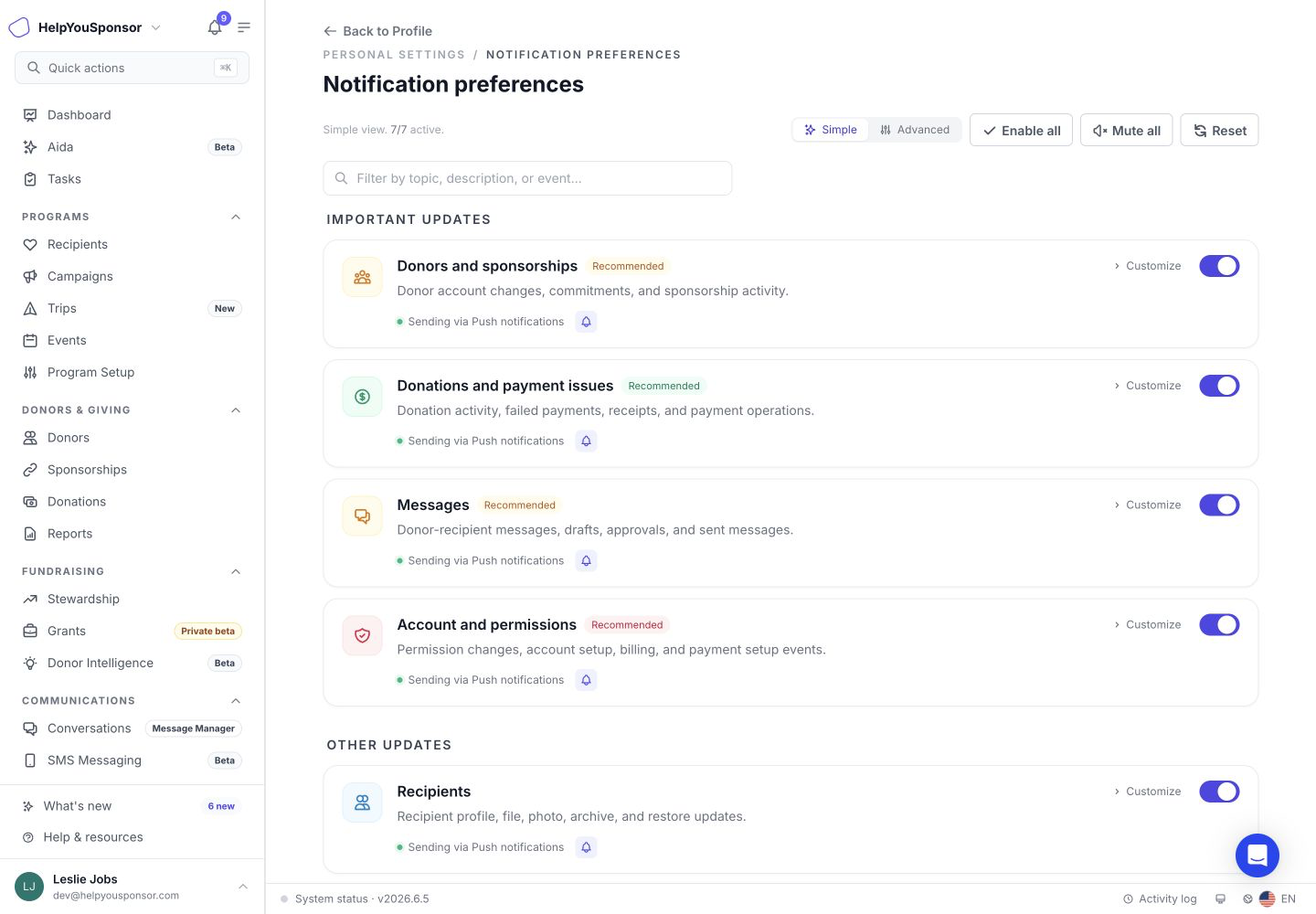
Personal settings > Notification preferences controls the updates shown to the signed-in admin.
The page groups topics into Important updates and Other updates. Important updates are marked Recommended when they may include account, payment, or security-related activity.
Admin notification preferences control in-app updates, including the notification bell and pop-up notifications. Muting an in-app topic does not turn off automated admin emails from Auto Emails. The Team collaboration email topic separately controls emails when someone mentions you in a comment.
Admin notification topics can include:
Donors and commitments: donor account changes, commitments, and commitment activity.
Donations and payment issues: donation activity, failed payments, receipts, and payment operations.
Messages: donor-recipient messages, drafts, approvals, and sent messages.
Account and permissions: permission changes, account setup, billing, and payment setup events.
Recipients: recipient profile, file, photo, archive, and restore updates.
Exports and reports: exports, imports, scheduled reports, and generated download files.
Newsletters and mailings: newsletter and mailing run completion or failure.
Use Simple View
Use Simple view when you want one main toggle for each notification topic.
Simple view gives each notification topic one main toggle.
Turning a topic off mutes that topic for your admin notification bell and pop-up notifications. If the topic is recommended, Gratona asks you to confirm before turning it off.
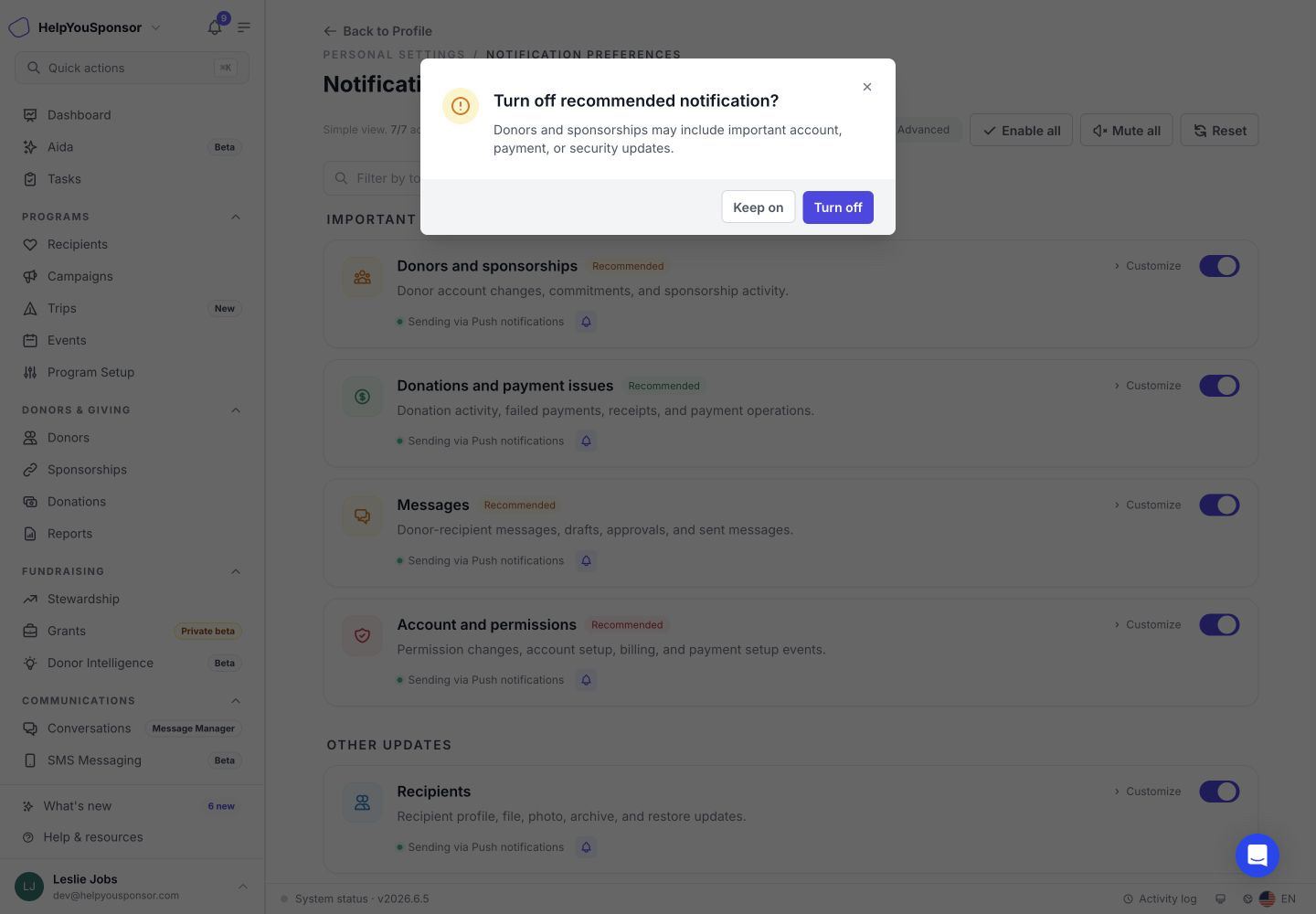
Recommended topics show a confirmation before they are turned off.
Choose Keep on if you do not want to mute the recommended topic. Choose Turn off only when you are sure you want to mute that topic.
After making changes, select Save changes in the bar at the bottom of the page.
Use Advanced View
Use Advanced view when you want to control individual notification events inside a topic.
Select Advanced.
Find the topic you want to adjust.
Turn individual channels or events on or off.
Select Save changes.
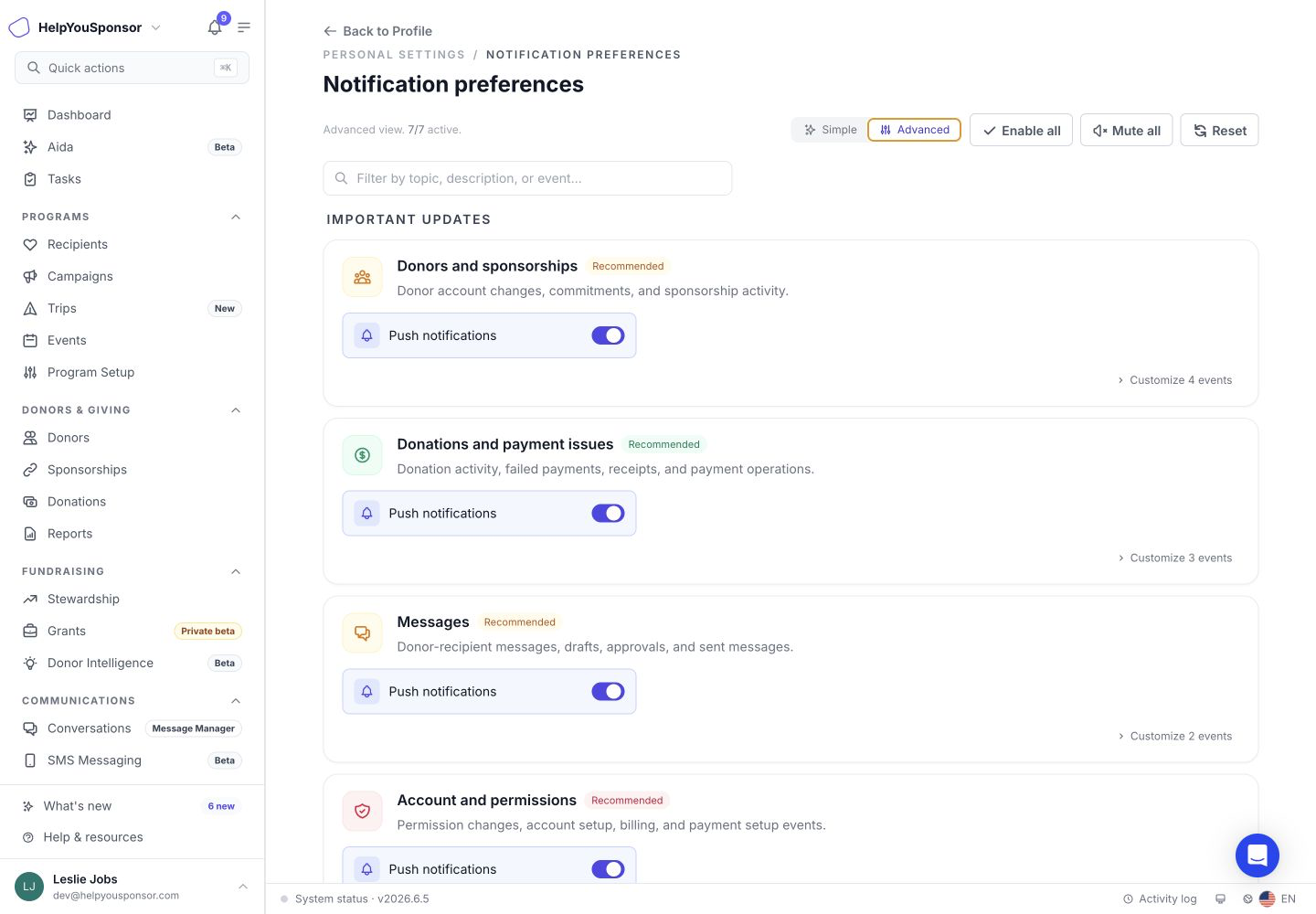
Advanced view lets you fine-tune channels and events inside each notification topic.
Find and Reset Preferences
Use the search field when you want to filter topics by name, description, or event.
Use the bulk actions when you need to update many topics at once:
Enable all: turns every available notification topic back on.
Mute all: turns every available notification topic off.
Reset: restores the default notification settings.
By default, notification topics are turned on until you change them.
Donor Notification Preferences
Donors manage their preferences from the donor portal. Log in, open the profile menu, and select Communication preferences or Notifications, depending on the options shown.
If the page shows Communication preferences, changes save immediately. It shows email categories and the current text-message and postal-mail settings. Donors can stop text messages here; restarting texts requires the organization to confirm consent.
Stop all communication pauses email, text messages, and postal mail, including receipts, tax documents, failed-payment notices, sign-in links, and password-reset emails. Individual choices are kept for when communication resumes. Review the confirmation before using this option.
If the page shows Notification preferences with Simple and Advanced views, use those controls for email topics such as receipts and tax documents, payment reminders, sponsorship updates, messages, photos, and files. Select Save changes after editing.
Donors do not see the admin bell or pop-up notification controls. Delivery also depends on organization restrictions and email suppression, including restrictions associated with a shared email address.
What Notification Preferences Do Not Change
Notification preferences do not change:
The Activity Log. Account activity is still recorded even when a notification topic is muted.
Admin permissions. Use Permissions and Access Control to change what an admin can access.
Organization email templates. Use Auto Emails to edit or disable template-level automated emails.
Automated admin email delivery when you mute an in-app topic. Use Auto Emails to manage template-level automated emails.
Another user's preferences. Each admin and each donor manages their own notification settings.
Text-message and postal-mail preferences when you are editing only admin notification topics. Donor Communication preferences has separate controls for these channels.