
Use an existing QuickBooks Service Item for a program
Updated 2 days ago
Use one existing QuickBooks Service Item for a program’s donation revenue while keeping recipient and campaign details in Gratona. Configure this per program; multiple programs can use the same shared Item.
Choose the Item workflow
Recipient items is the default. It keeps individual QuickBooks Items for recipients and the existing additional-gift defaults and overrides.
Existing QuickBooks item uses your selected Service Item for new donation gift lines associated with that program, including recipient, campaign and additional gifts. It takes priority over recipient Item links and gift Item defaults or overrides. Donor-covered processing fees still need their separate fee-recovery Item.
Select an existing Service Item
Open your account menu, then Organization settings → Connected apps.
On QuickBooks Online, select Manage and confirm the connected company.
Choose a program and open Service Item.
Choose Existing QuickBooks item.
In QuickBooks Service Item, search for and select an active Service Item with an income account configured in QuickBooks.
Select Save Service Item Settings.
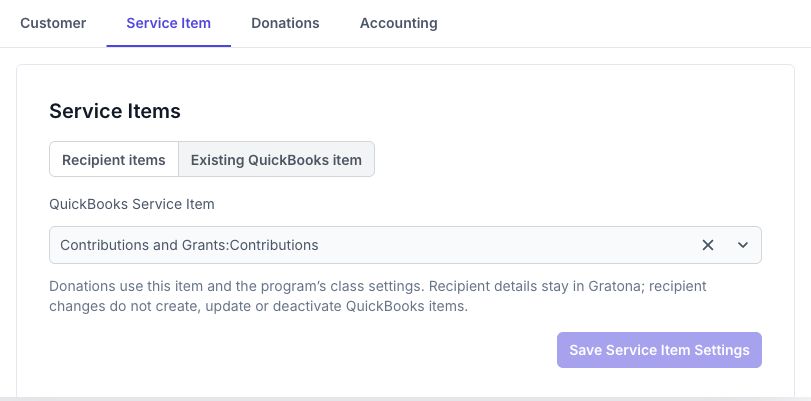
Recipient changes in Gratona do not create, update or deactivate the shared QuickBooks Item. QuickBooks Item changes do not create, edit or archive recipients in this program. Customer and donation sync still follows the program’s sync direction. A previously unlinked QuickBooks receipt cannot identify a recipient from a shared Item alone and needs review.
Keep classes and deposit accounts separate
The shared Item keeps its income account in QuickBooks. To change that income account, edit the Item in QuickBooks.
On Accounting, use Default Donation Class (Optional) and applicable campaign or recipient class settings, then Save Attachment Settings. On Donations, use Sales Receipt Deposit Account (Optional), then Save Donation Settings. The deposit account controls where money lands; it does not change the Item’s income account. Shared mode shows the selected Item instead of the older gift Item default and override controls.
Resolve Customer links before sending donations
Every synced donation still needs a QuickBooks Customer. Gratona uses an existing Customer link first; otherwise donation export needs an email that identifies exactly one Customer. Multiple matches require review. A missing link and no unique email match prevent export. Selecting a Service Item does not resolve Customer matches.
Customer sync can create a new QuickBooks Customer when no match exists. It is not an existing-Customers-only linking tool. CSV-imported donors currently skip manual and historical Customer sync; contact support to review their existing Customer links before backfilling donations. See Adding Donors (Customers).
Review historical donations
Saving settings does not send older donations. Confirm outbound sync is allowed, then choose a narrow date and program scope in Historical QuickBooks sync. Shared programs do not need per-recipient Item creation. Create zero-write preview saves a Gratona plan and sends nothing to QuickBooks. Review creates, updates, links, skips and conflicts before approving it. Each preview is limited to 500 records.
Reconcile gifts already entered independently in QuickBooks before approval. Customer links alone do not identify existing sales receipts, and separately entered receipts are not guaranteed to be detected as duplicates. Positive completed gifts must still pass currency, allocation and accounting checks; pending, failed, refunded or disputed gifts may skip or need review. Check execution results after approval.
Change modes or resolve an unavailable Item
If an Item is unavailable, select an active replacement. An Item already used as a recipient’s identity in another recipient-mode program cannot be taken over as a shared Item; choose a separate accounting Item.
Changing modes does not migrate or reclassify posted receipts. Existing receipts retain their original Item. Returning to Recipient items resumes individual Item behavior for new sync; some later accounting changes on posted receipts need review.