Split one donation across multiple recipients or designations
Updated last week
Use Split Donation > Distribute amount when one gift should be divided across several recipients, campaigns, or other designations. Choose equal amounts, use existing commitment-period amounts, or enter a custom amount for each destination.
If a foundation's already-recorded gift needs to cover recipients for a date range, use the Fund recipients ledger instead. Do not enter that money again as a new donation.
Open the distribution tool
Open the donor's profile and select Add giving > Add Donation.
Enter the gift's date and full positive Amount.
Enable Split Donation, then select Distribute amount.
Select at least two designations. Search by name when needed.
The initial list contains this donor's current sponsorship and commitment designations. To include other recipients, a campaign, or another authorized designation, enable Apply to other designations. This is also needed when a foundation has no current sponsorships of its own.
Selections stay selected as you search for another name. Use Load more designations if available. Select results selects the results currently loaded; review the selected count before previewing. Turning Apply to other designations off removes outside selections from the distribution draft and requires a new preview.
Choose a distribution method
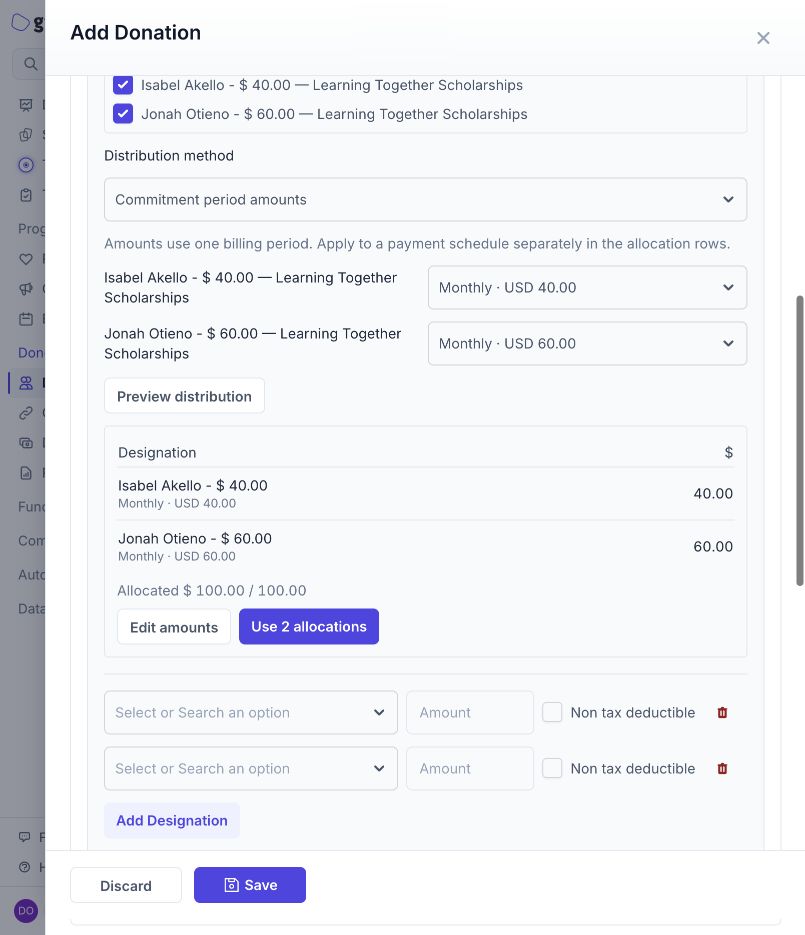
Commitment period amounts is the default. It uses one billing period from each selected available commitment. Check the displayed frequency, currency, and period amount; choose the schedule when more than one is available. Missing schedules are not treated as zero amounts. Use equal or custom amounts for separately funded relationships that have no payment schedule.
Equal amounts divides the gift evenly. Any remaining smallest currency units are assigned to the first selected destinations so the total stays exact. For example, a 100.01 gift across three destinations becomes 33.34, 33.34, and 33.33.
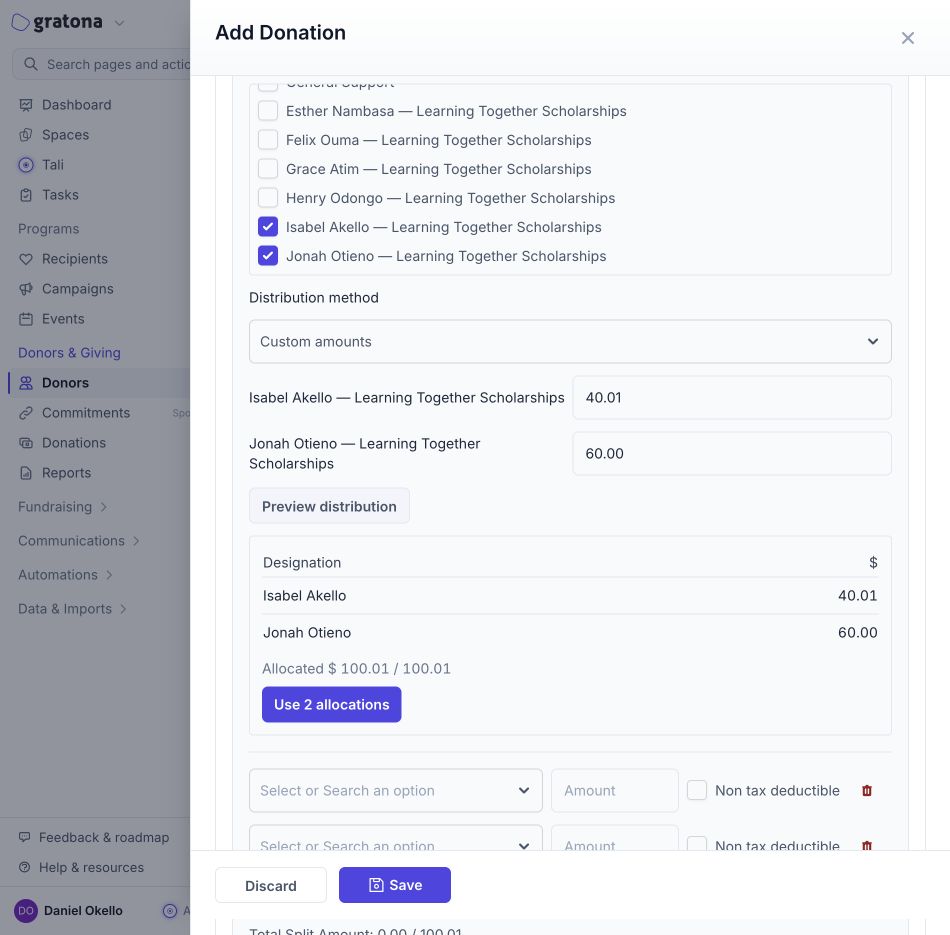
Custom amounts lets you enter each destination's positive amount. All amounts together must equal the gift.
The amounts use your organization's base currency. EUR organizations see euros and GBP organizations see pounds. The tool does not convert between currencies; a mismatched or unavailable commitment amount must be corrected before using it.
Preview and use the allocations
Select Preview distribution.
Check each designation's real name and amount, and the Allocated total against the gift amount.
If money remains, assign it to a selected designation with Assign remainder, or adjust custom amounts. If the allocation exceeds the gift, reduce it or correct the full gift amount. Preview again.
When the preview is valid, select Use N allocations, where N is the number of destinations. This fills the ordinary Split Donation rows.
Review those rows, including tax-deductibility settings and any payment-schedule links. Applying a distribution replaces the current allocation rows; review soft-credit amounts again if the gift has them.
Use N allocations does not save the donation. Complete and confirm the gift in the next step. If you change the gift amount, destinations, or method before applying a preview, create a new preview.
Record and verify the gift
Choose the payment method. For an already-received check, use Check and enter its check reference.
Review the receipt option and whether any charge is requested.
Select Save. In the confirmation, verify the donor, date, total, named designations, amounts, method, and receipt information.
Confirm the donation, then open Donation History and verify the saved portions total the original gift.
Choosing Commitment period amounts calculates the distribution; it does not automatically apply the gift to payment schedules. Any schedule application must be selected separately on the allocation rows and reviewed before confirming. See the sponsorship coverage guide below.
Record the gift once. Do not add the full check again after saving its split portions.
Example previews
These fictional demonstration records show a 100.00 gift using Isabel Akello's 40.00 and Jonah Otieno's 60.00 monthly commitment amounts, followed by a custom 100.01 split of 40.01 and 60.00. The screenshots use USD; the same controls use your organization's base currency.