
Scheduled Reports
Updated 2 weeks ago
ADVANCED FEATURES
Scheduled Reports
Use Scheduled Reports when you want recurring CSV exports of a report delivered to your inbox. For example, receive a monthly donation summary every first of the month.
Scheduling is managed from the Reports library. Each report can have one active schedule.
Schedule a Report
Open Reports from the sidebar under Donors & Giving.
Select a report to open its detail panel.
Select Schedule in the footer actions, or open the three-dot menu on the report row and choose Schedule.
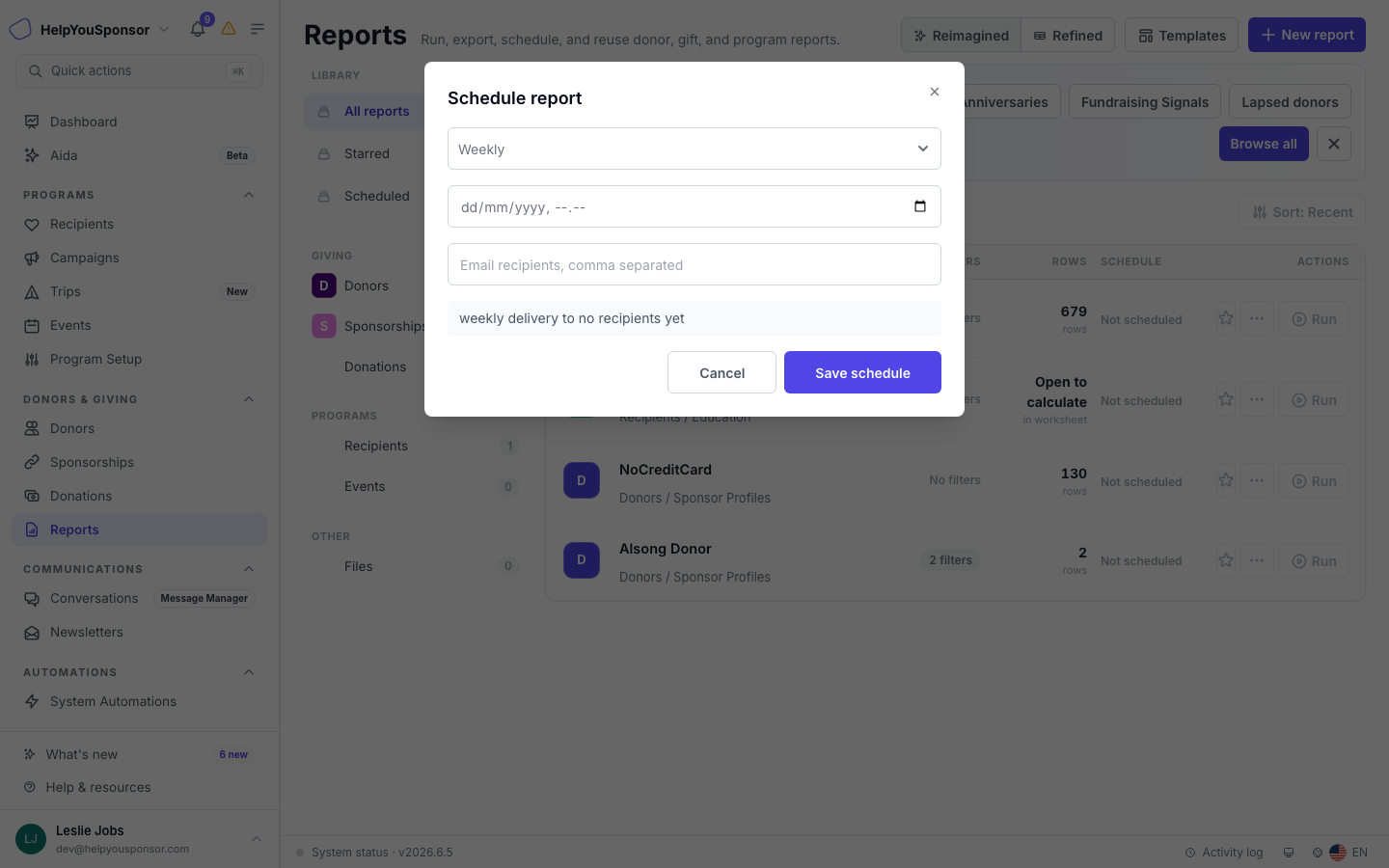
The Schedule report dialog lets you choose a one-time or recurring schedule, review its timing and timezone, and enter recipient emails. Where Schedule type is shown, choose Recurring or Run once and review
the schedule with its timezone. Where
the Frequency selector is shown, choose Once, Daily, Weekly, Monthly, Every 3 months, Every 6 months, or Yearly, then set First delivery. For a recurring schedule, review the recurrence rule before saving.
Enter Recipient email addresses — comma-separated. Each recipient receives the CSV export as an email attachment when the report runs.
Select Save schedule.
A frequency tag appears on the report row in the library (for example, "Monthly") and in the detail panel. The next delivery date is calculated automatically.
View Schedule Status
The detail panel for a scheduled report shows the frequency and delivery information. The Reports library also shows a schedule pill with the frequency label for each scheduled report.
Scheduled reports can be filtered using the Scheduled reports source filter in the library sidebar.
Remove a Schedule
Open the scheduled report's detail panel.
Select Schedule.
Select Remove schedule.
Wait for the Schedule removed confirmation.
The report is no longer delivered by email, but the report definition and its data remain in the library.
How Delivery Works
Scheduled reports are processed by a background job that runs periodically. When a report is due, the system generates a CSV file from the report's column and filter definition and emails it to all recipient addresses.
The CSV uses the report's current filter and column settings. If you edit the report after scheduling it, subsequent exports use the updated definition.
Scheduled exports use the report definition and available data when the scheduled work runs. Show as current total changes dashboard presentation; it does not freeze the report’s rows.
Test emails are not sent for scheduled reports. To check the output, use Download report from the detail panel, or Download from the row menu, review the record count, and confirm the export.
Scheduled reports use the organization's saved email settings and are not changed by domain verification. See Email Settings for how sender identity and verified sending work.
Permissions
Your role controls whether you can schedule, edit, or remove report schedules. If Schedule is missing, check Manage reports, access to the report’s data, and whether the source supports scheduling. Subscription availability can also affect scheduling.