PayPal Setup
Updated 2 weeks ago
GETTING STARTED
PayPal Setup
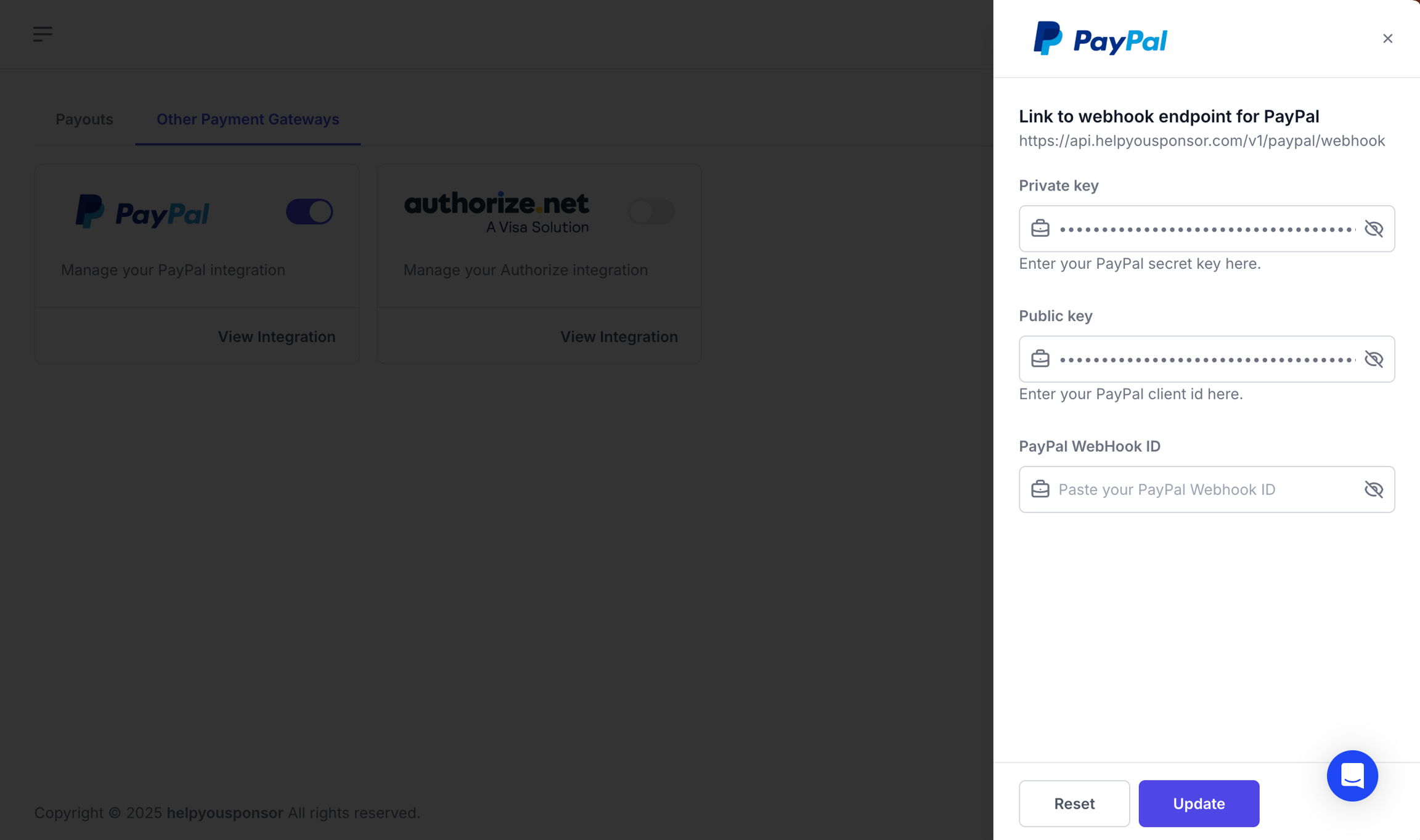
To integrate PayPal into Gratona, we’ll require you to provide your Client ID, Secret and Webhook ID.
Getting Client ID and Secret
The PayPal Client ID and Secret can be got from your PayPal developer platform. This will require that you first create a new App in PayPal incase you do not have one. Click "Create App" and follow the procedures. We have shared this resource from PayPal to help with creating of the app https://developer.paypal.com/video/watch/?videoId=QTDEeB6xzCg
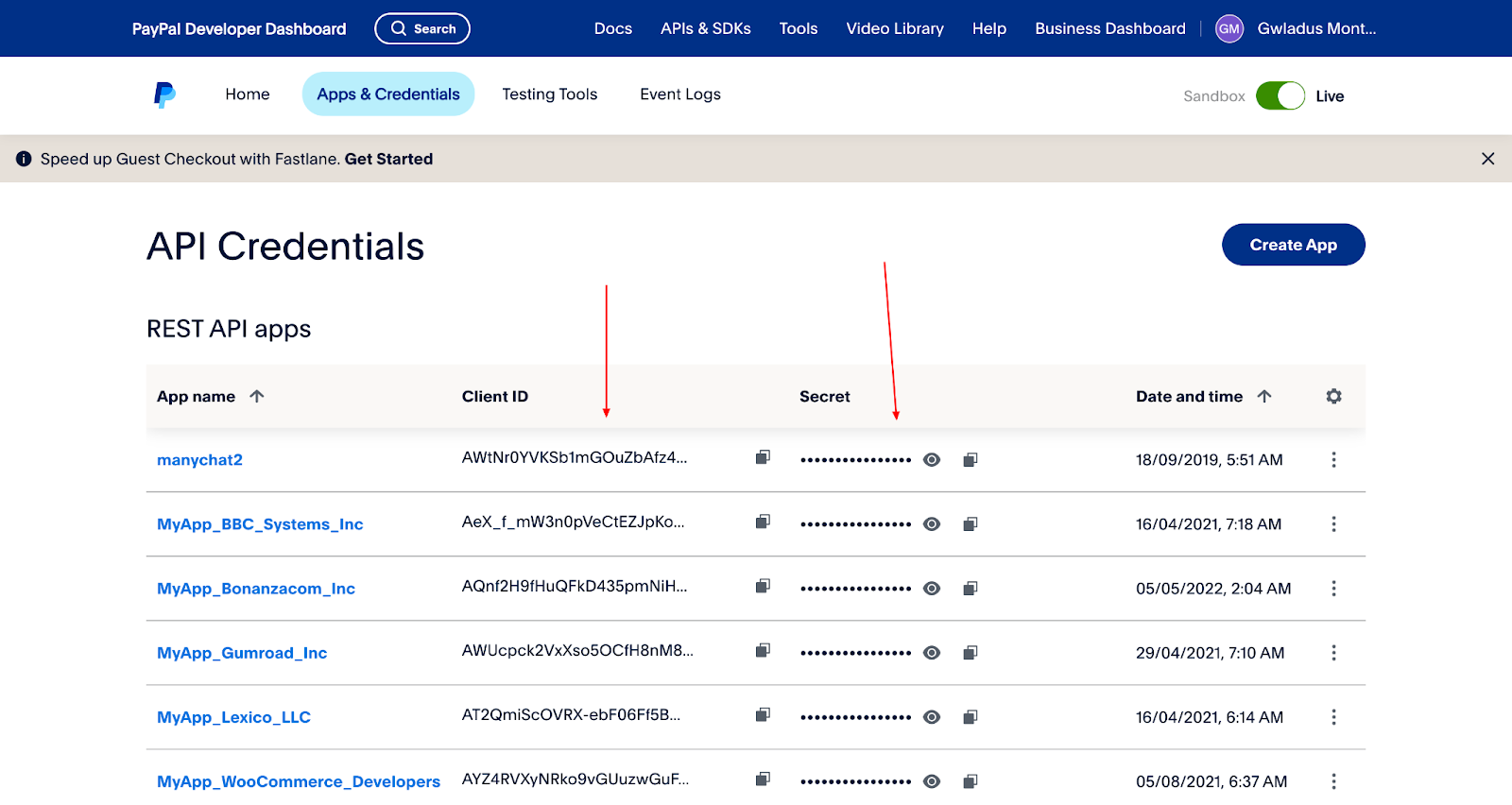
Once you have got the Client ID and secret, the next step is to create a Webhook so as to obtain a Webhook ID.
Getting Webhook ID
After creating the app, you have to choose the one that you want to connect to Gratona. Select the app that you want to use. You’ll be taken to that app page, scroll down to where you’ll find live Webhooks.
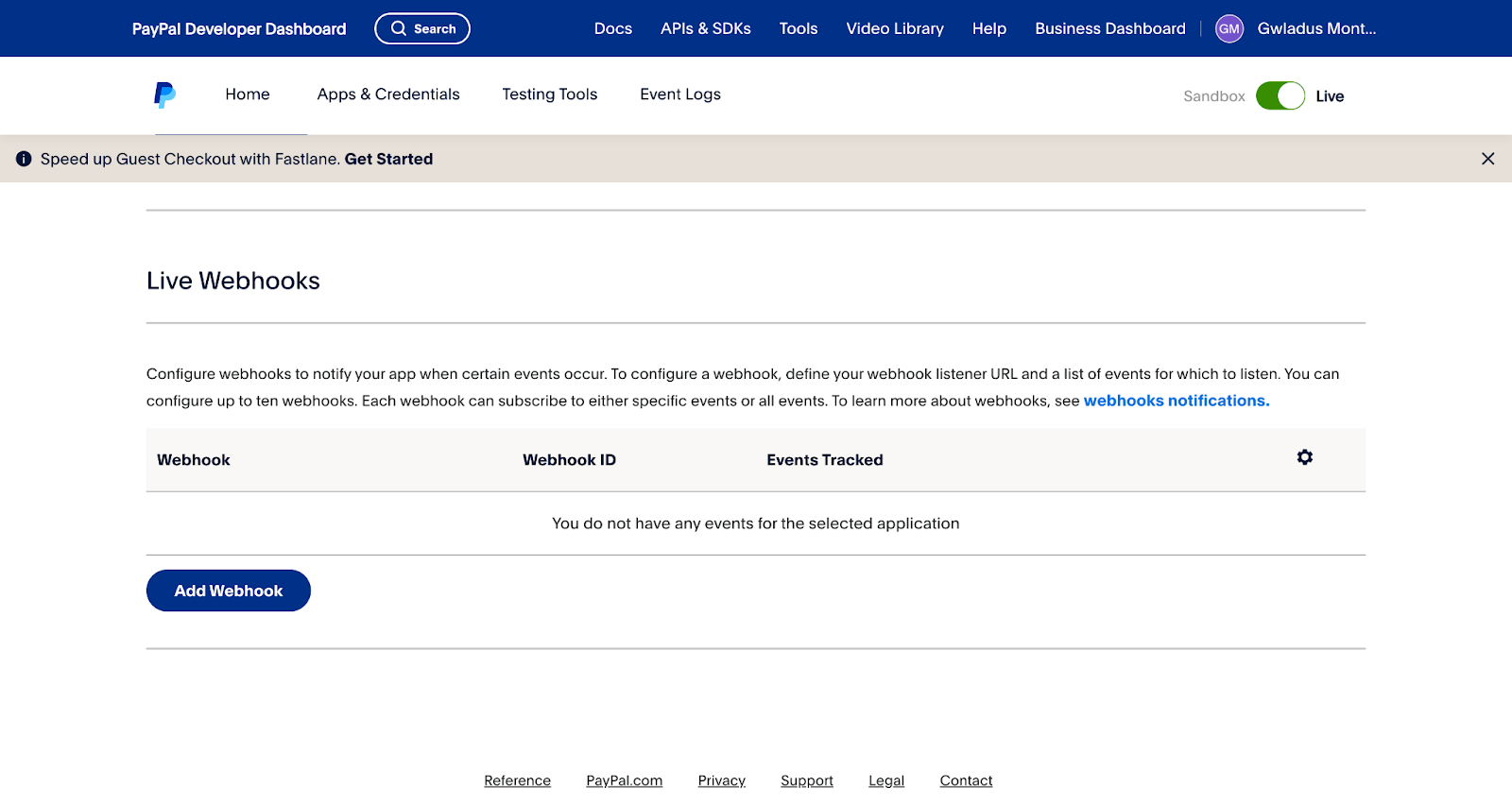
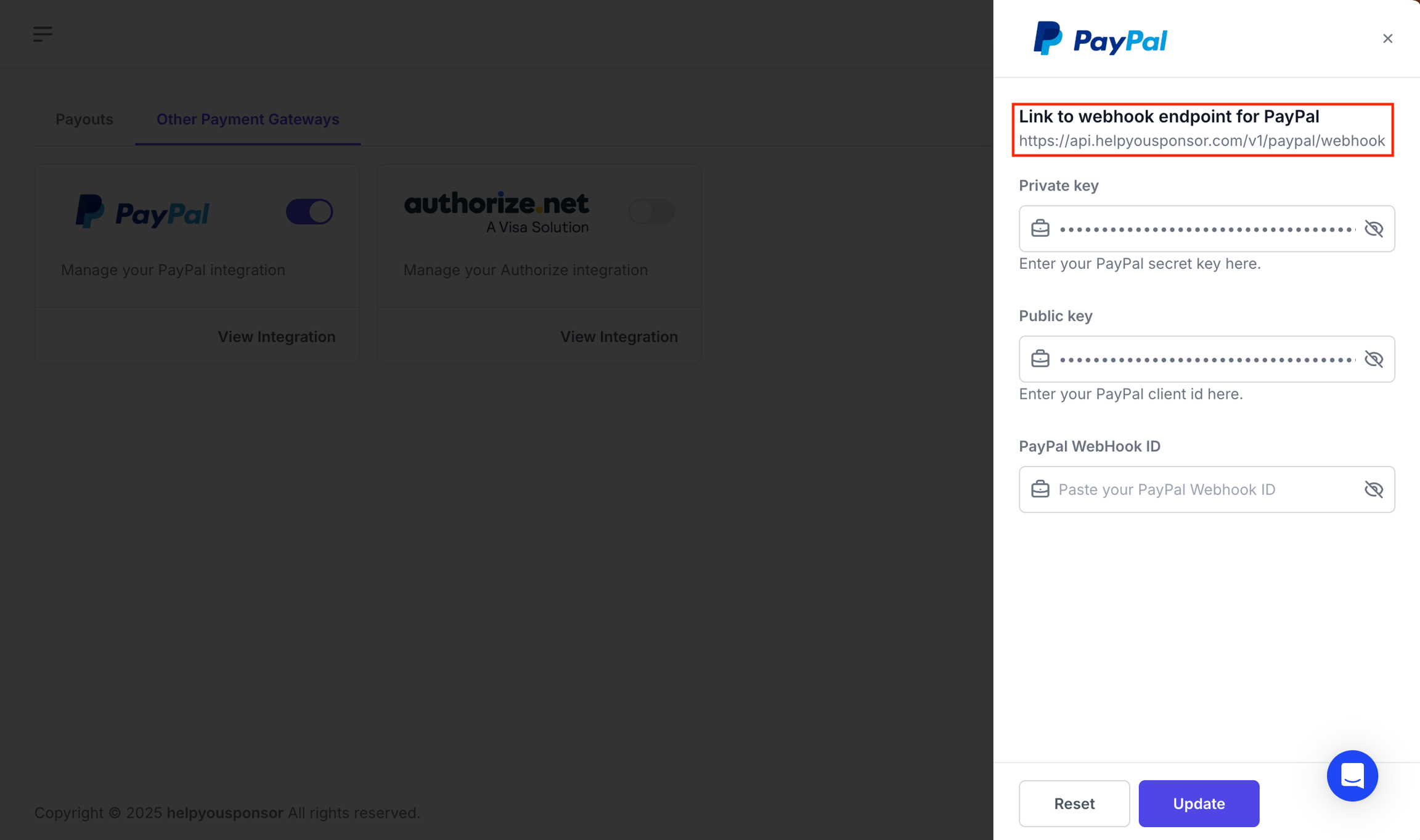
Click the "Add Webhook" button. You will be presented with a form to place the "Webhook URL". Below is the URL to place there.
https://api.helpyousponsor.com/v1/paypal/webhook
You can also get the Webhook URL from the PayPal payment integration in Gratona.
After adding the webhook URL, go to the "event types" section and select the events your PayPal integration needs, then save:
PAYMENT.SALE.COMPLETEDunder "Payments & Payouts" for recurring donations.PAYMENT.CAPTURE.COMPLETEDfor event registration payments.
If you use both recurring donations and event registration, enable both events.
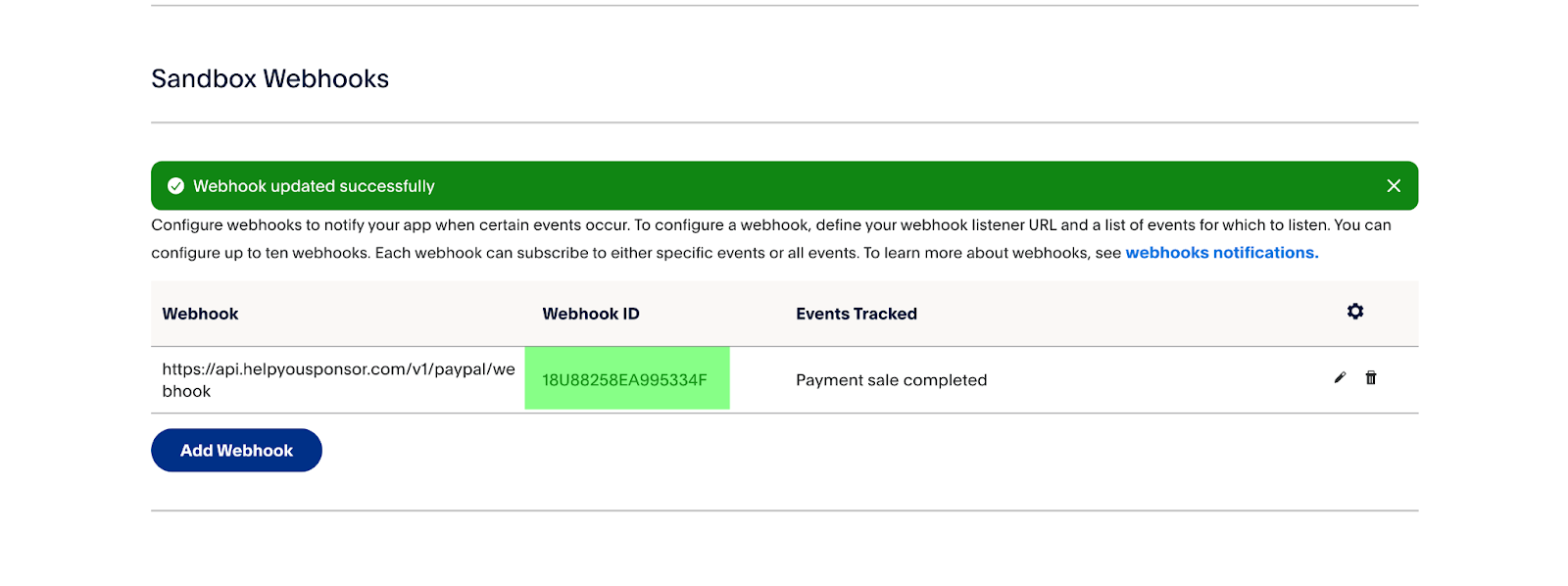
Once saved, the page will appear as shown below showing the Webhook ID.
In Gratona, open the account menu, select Organization settings, then Payment gateways. Open Payment Gateways or Other Payment Gateways, as shown, and select View Integration for PayPal. Enter the Client ID in Public key, the Secret in Private key, and the Webhook ID in PayPal WebHook ID, then select Update.