
How to close my account?
Updated 2 weeks ago
How to close my account?
Use this guide when you need to decommission your organization's account. Closing your account stops organization billing, cancels active organization subscriptions, and queues your data for archival. Only a Gratona super admin can restore a closed account.
Before you begin: You need the Access delete account controls permission to see Danger Zone in Organization settings. If you do not see the options described here, ask an administrator to review your permissions.
Close your account
Open the account menu at the bottom of the sidebar and select Organization settings.
Select the Danger Zone tab.
Review the warning message. Deleting your account stops billing and triggers the archival workflow. It cannot be undone without a dedicated restore flow.
Enter a reason for deletion (optional).
Select Decommission organization.
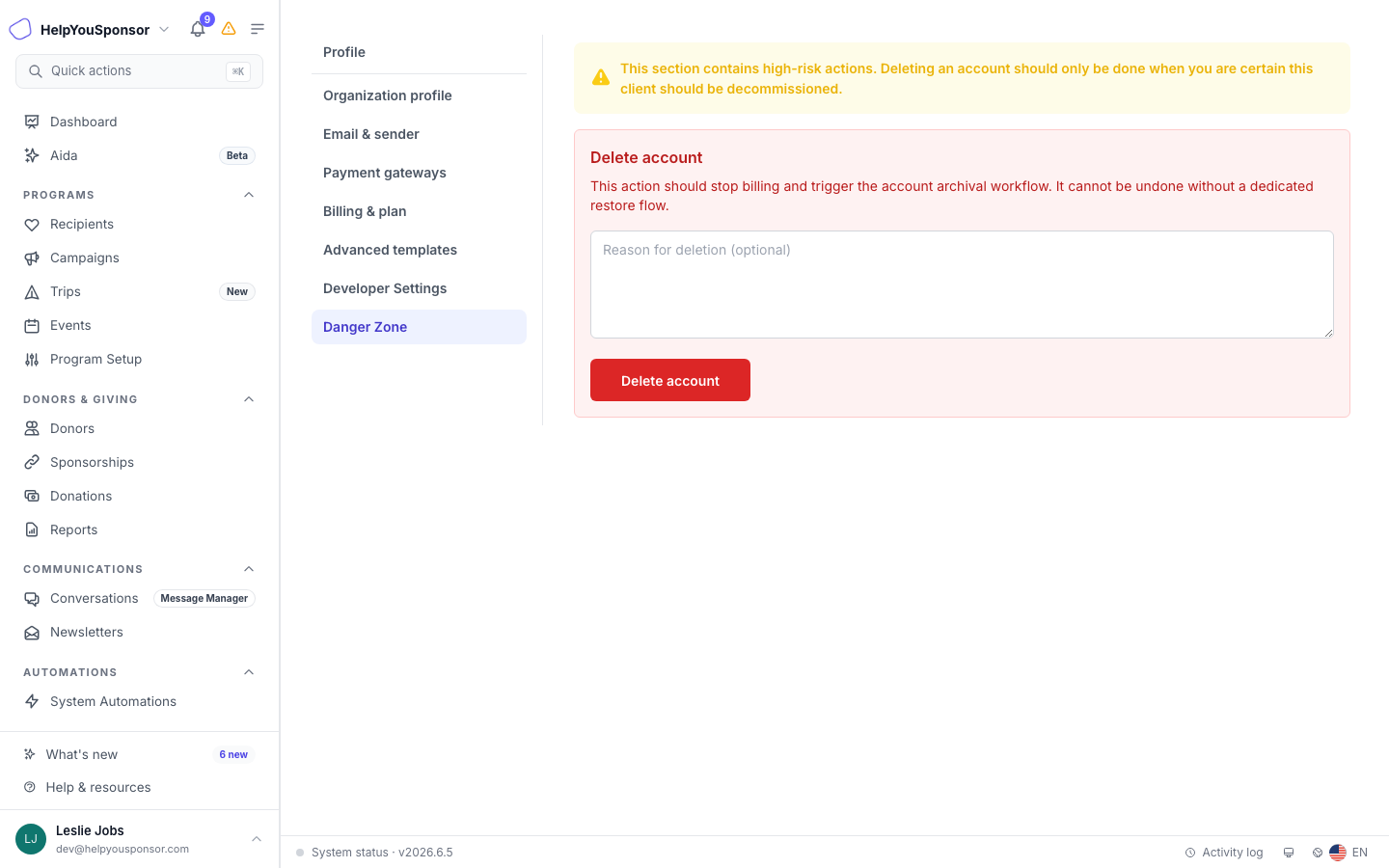
The Danger Zone tab in Organization settings shows the Decommission organization section with a reason field and Decommission organization button.
In the confirmation dialog, type DELETE.
Select Decommission organization to confirm.
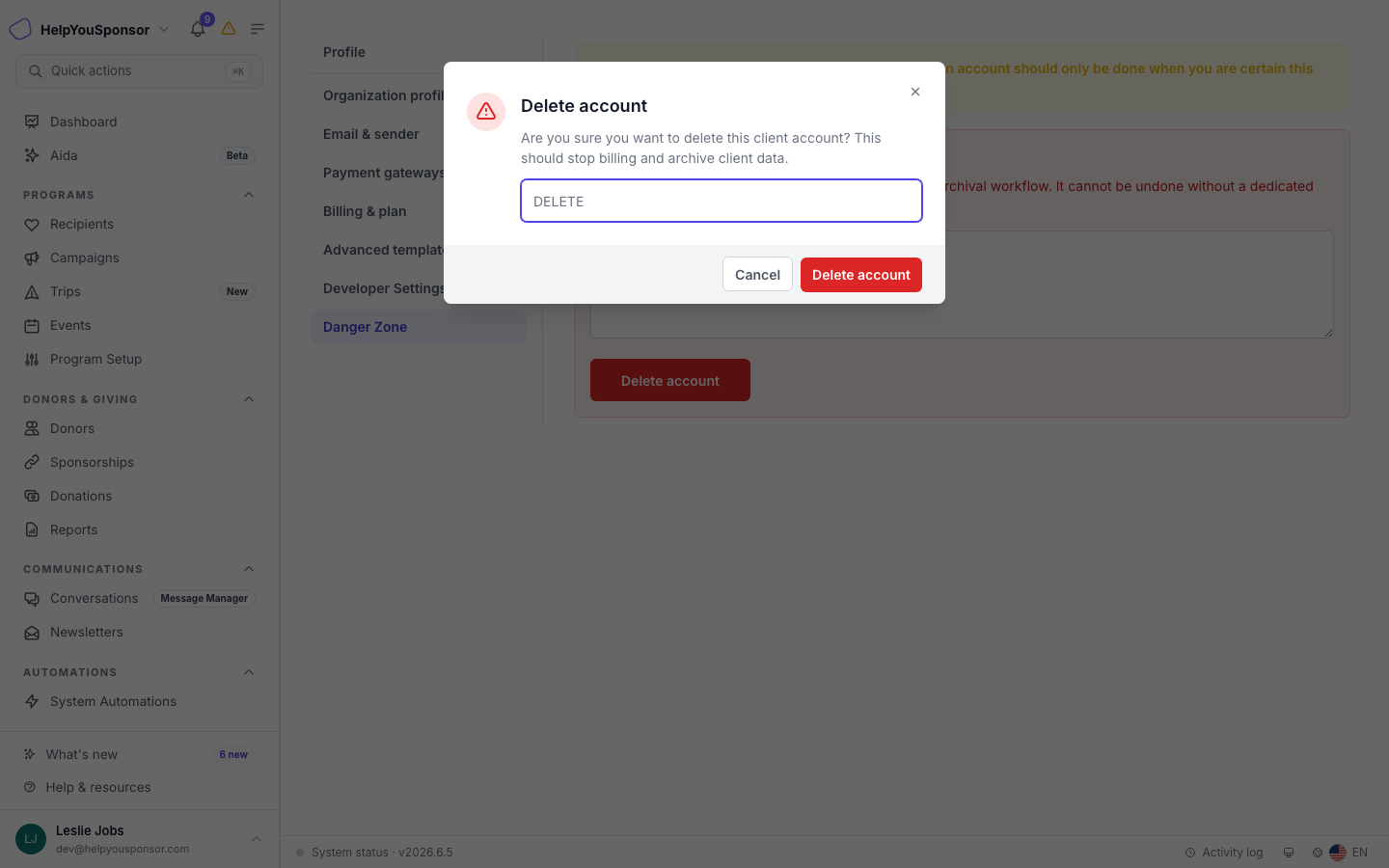
The confirmation dialog requires you to type DELETE before the Decommission organization button becomes available.
Gratona starts the decommission process and signs you out automatically.
A success notification confirms that billing stop and archival workflow have been queued.
What happens when you close your account
Organization billing stops: Active organization subscriptions are cancelled immediately. Gratona-managed recurring processing stops for the closed workspace. Review subscriptions billed independently by an external payment provider with that provider.
Data is archived: Your donors, recipients, donations, sponsorships, programs, and other records are queued for archival. A background job processes the archival.
Workspace access is revoked: The organization becomes non-operational, administrator access is deactivated, and users cannot resume work in the closed workspace.
Restoration by support only: A closed account cannot be reopened from the application. Contact Gratona support if you need to restore the account.
Permissions
Your role controls whether you can see and use the Danger Zone tab. If the tab does not appear in Organization settings, your permission group may not have Access delete account controls. Ask an administrator to review your group permissions.