
Edit Donor
Updated 2 weeks ago
Edit Donor
When you want to edit a donor, you'll have to choose it from the actions.
In order to edit a donor, you'll first have to retrieve the id of the donor, incase you know or you'll be passing it with your trigger data then you can skip the steps below.
If you need to look up an ID by email, choose the Find Donor by Email search event or the Find Donor action. Check the returned donor and Form Id against the intended Gratona record before mapping an automated edit. Do not treat an email match alone as proof that the correct donor was selected.
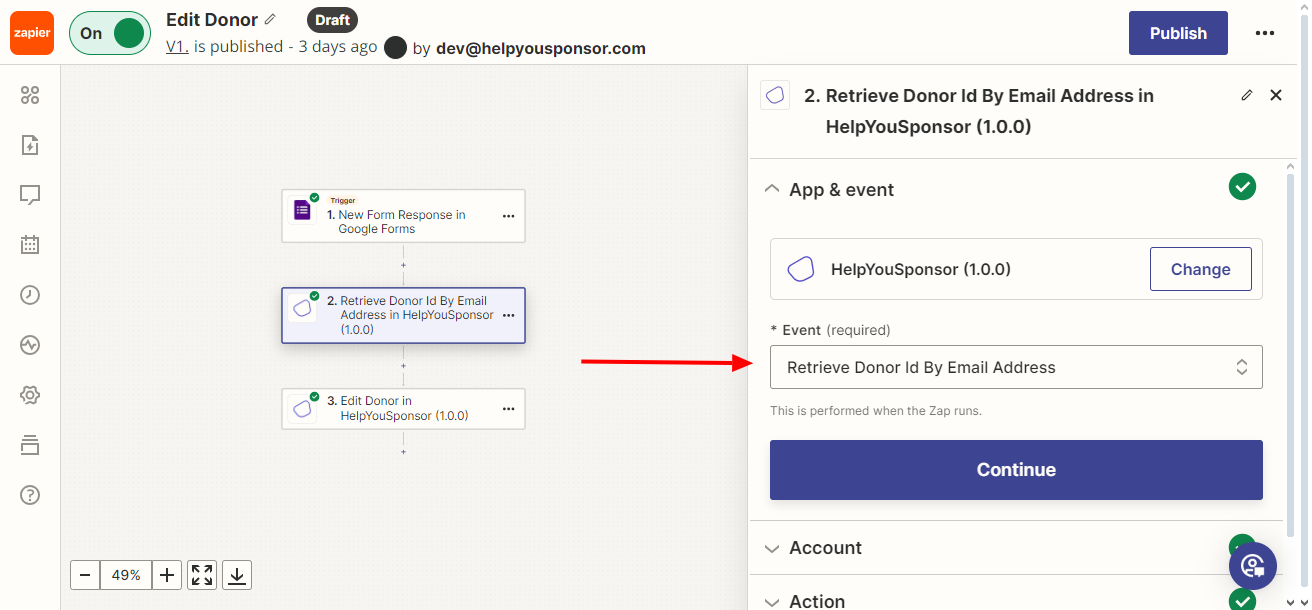
continue to authenticate your account, Then you'll be presented with a form to attach the email address of the donor that you want to edit.
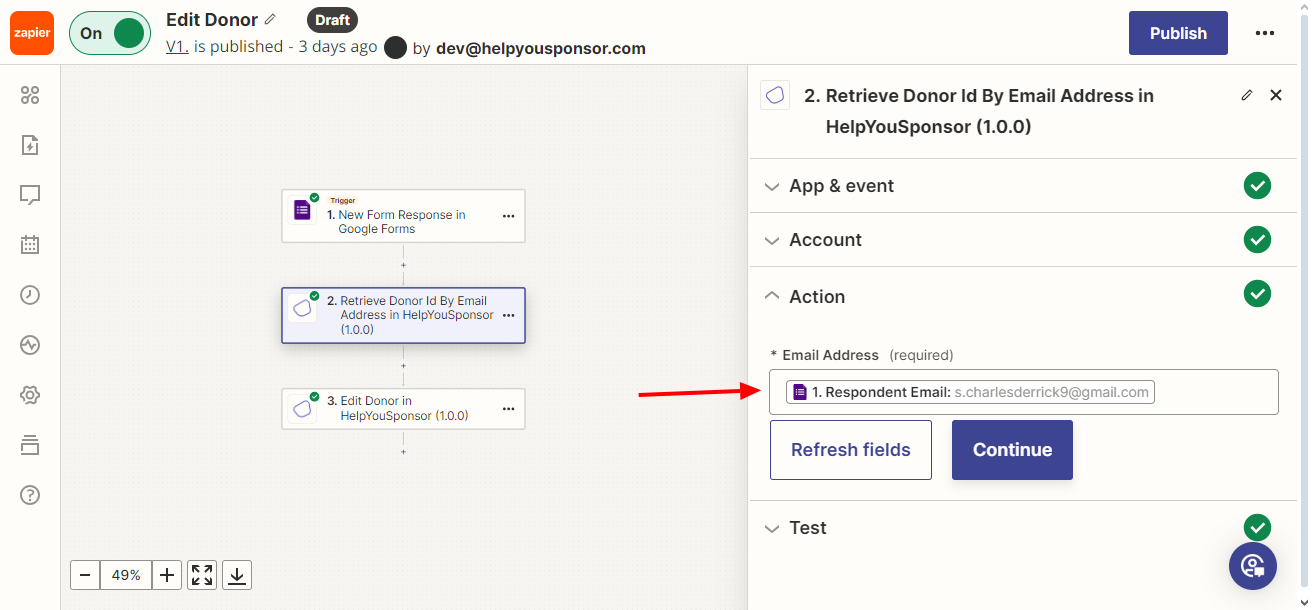
Choose Continue and then run the test, this will return the donor id and some other information about this donor
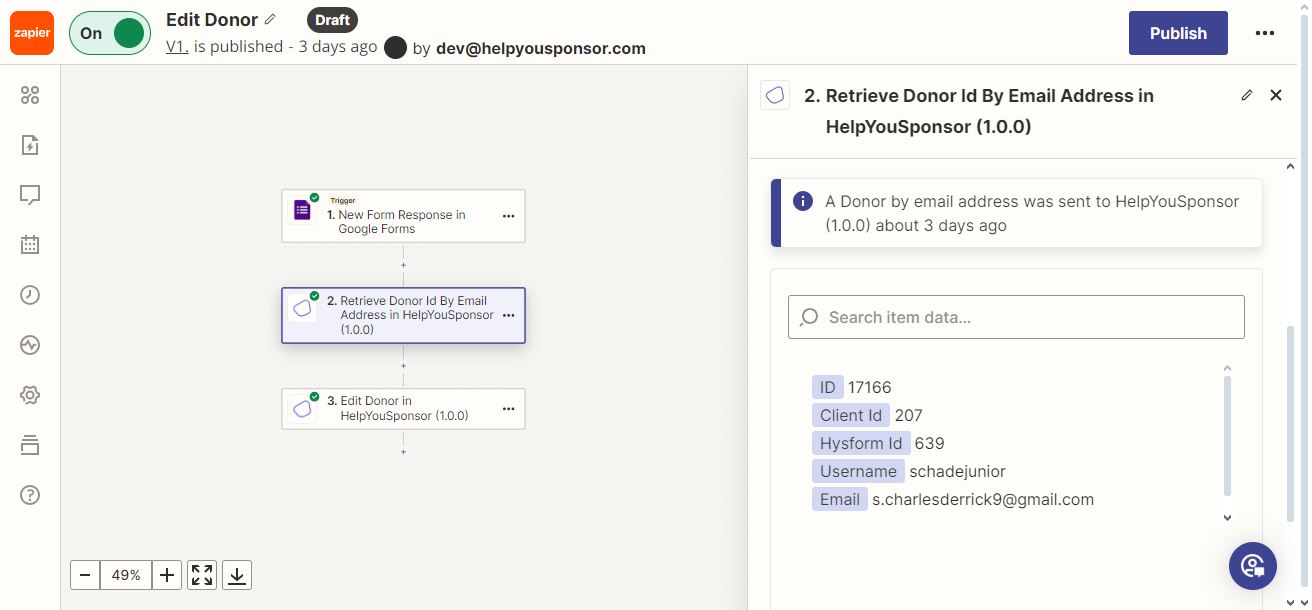
Choose Continue so that you can pass on this data for the next action below.
Edit Donor
Choose the action of Edit Donor from the actions list
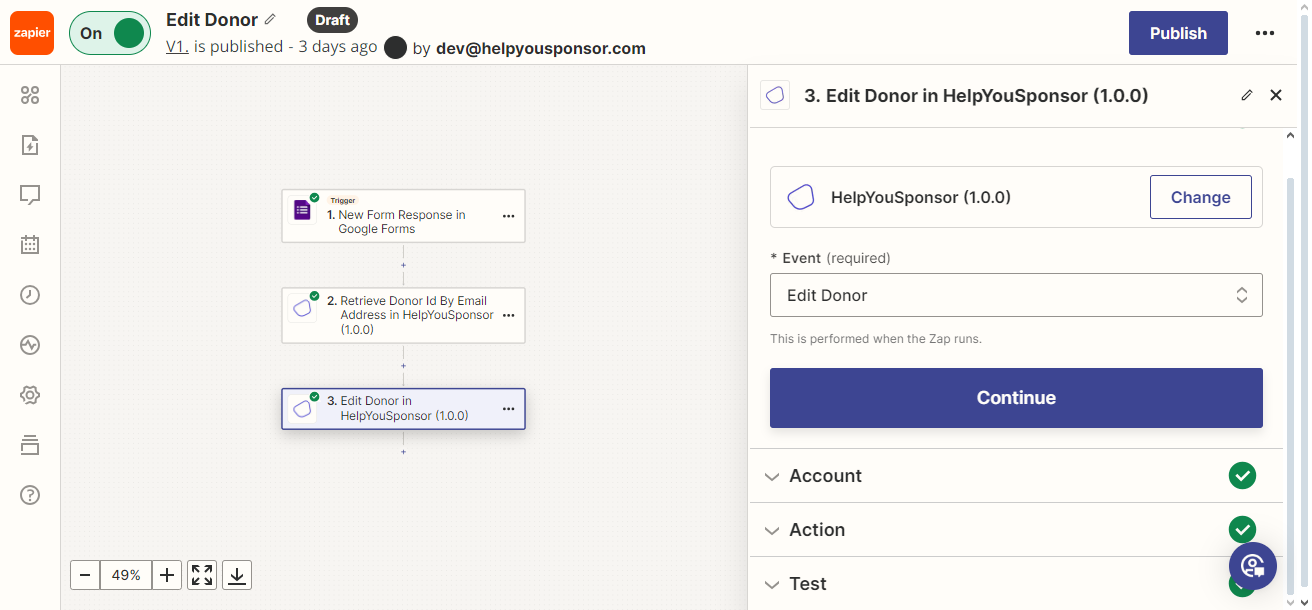
Connect an account through authentication and then move on to Action.
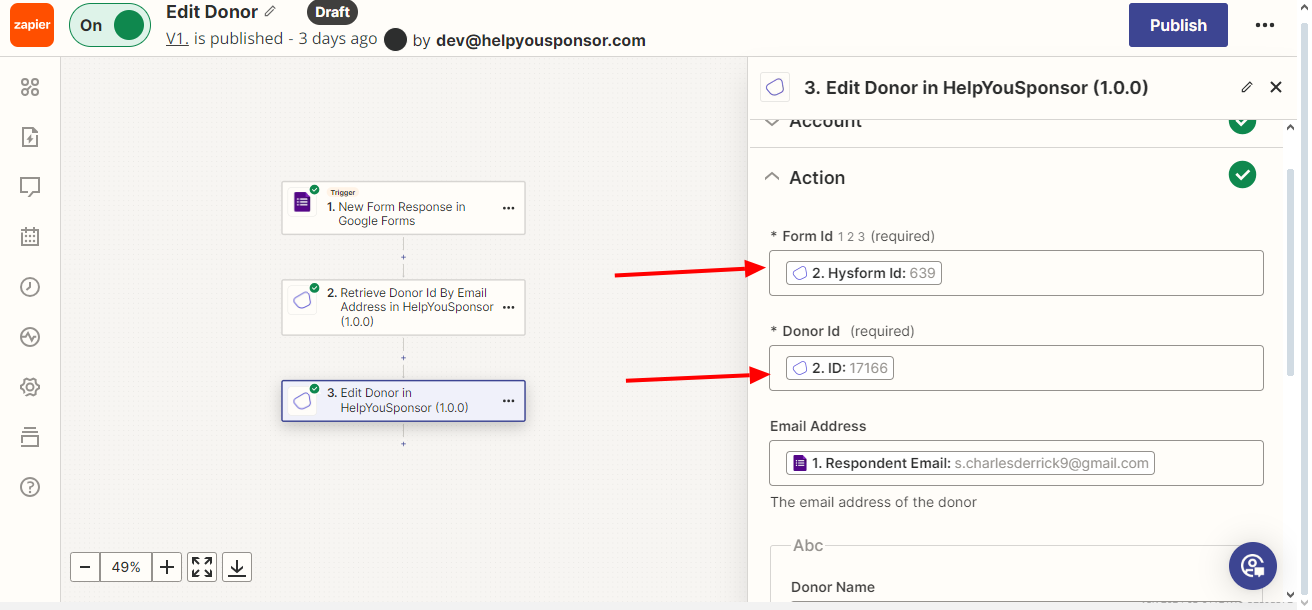
On the Form Id you'll pass the form id that will be used to generate the form fields, and then Donor Id will be the Id of the donor to be edited. All of this can be got from the returned data passed from the step described above.
Click Refresh fields to be able for zapier to generate the form fields. Then you fill in the fields that you would want to edit. Then Continue , Test and then check Gratona that the data was edited and then you can Publish