
Configure AI Intake settings
Updated last week
Configure AI Intake settings
AI Intake settings control who can see the source documents and extracted photos that an intake attaches to records. Recipient settings are shared across programs. Donor settings belong to each donor profile form.
Recipient intake settings
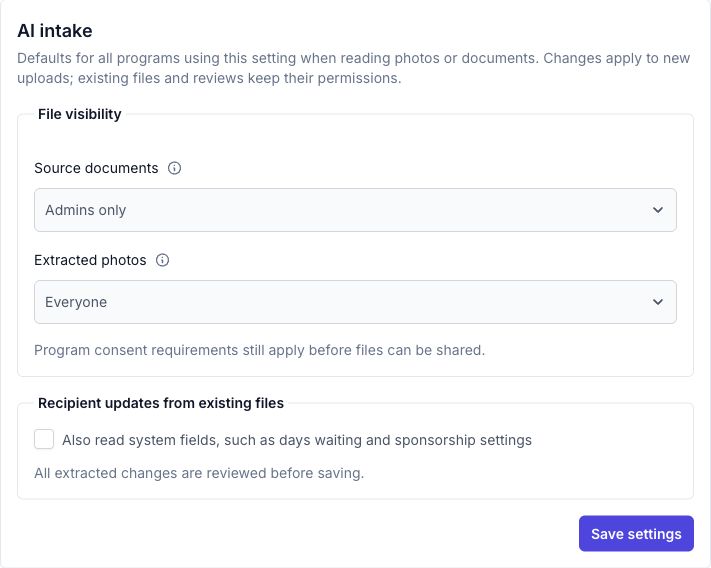
Recipient visibility settings live in the shared program settings, so every program using that program setting inherits the same defaults. There is no separate selector on each program.
Open Program Setup.
Open Program Settings and select the setting your programs use.
Select Edit and open the AI intake section.
Choose the visibility for source documents and for extracted photos.
Select Save settings in the AI intake section. Save any other form or program-setting changes separately if needed.
Donor intake settings
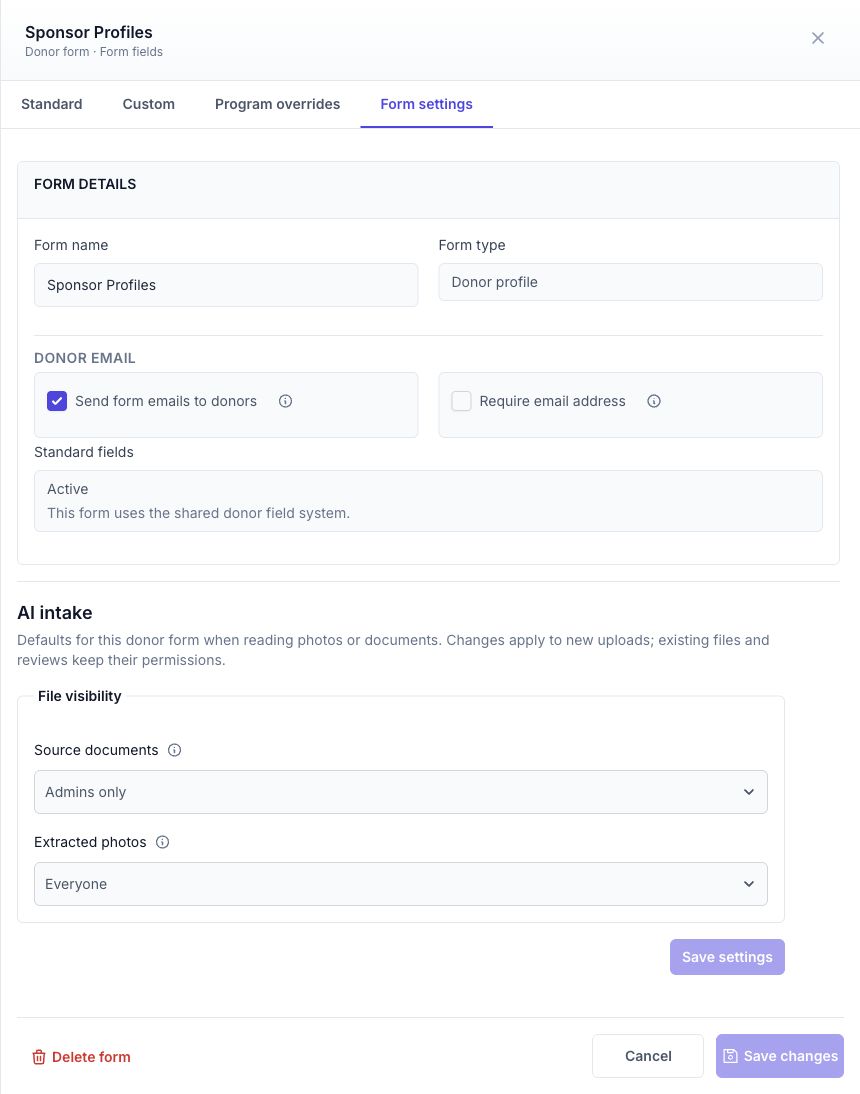
Donor settings belong to each donor profile form. If your account has more than one donor form, each form's AI intake visibility is set independently.
Open Donors and select the donor profile or form view.
Select Manage form.
Open Form settings and find the AI intake section.
Choose the visibility for source documents and for extracted photos, then select Save settings in the AI intake section. Save any other form or program-setting changes separately if needed.
Defaults and how they apply
Source documents default to Admins only.
Extracted photos default to Everyone.
Source documents and extracted photos have independent visibility choices: Admins only, Donors only, or Everyone.
Defaults are snapshotted when an intake starts. Changing the settings later does not change files and reviews that already exist, and existing files keep their current permissions.
Restricted extracted photos
When extracted-photo visibility is restricted, a portrait your team crops during review still saves to the record's Files & Photos, but it does not replace the recipient's public profile photo. The review card explains this at the time you save the crop. Consent and privacy processing at the program level can also keep a photo restricted and out of the public profile slot.
System fields when updating a recipient
A separate setting controls whether AI Intake reads recipient system fields when you update an existing recipient from a file. It is off by default. See Update recipient information from a file (AI Intake).
Exclude a field from reading
On configurable donor and recipient form fields, the Document intake section has a Don't read from documents checkbox. Excluded fields are omitted when AI Intake reads documents. See Program Forms for editing form fields.