
Add Recipient
Updated last week
Add Recipient
Use Add Recipient when you need to create one recipient record inside a sponsorship program. The fields you complete come from that program's recipient profile form, so the add workflow can look different from one program to another.
Start from Recipients, choose the program you want to work on, then open the program's recipient table.
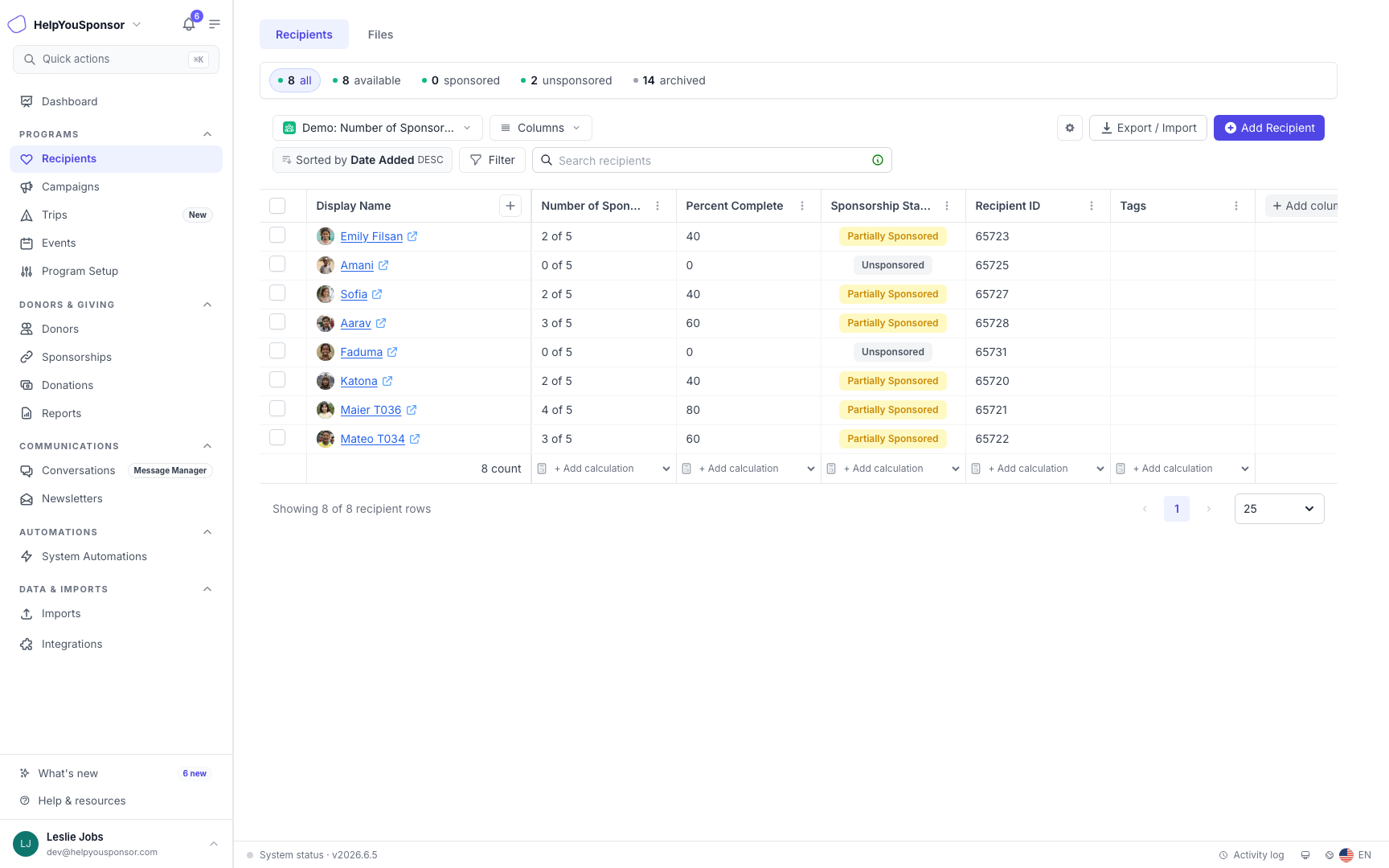
Select Add Recipient when you are ready to create one recipient in the selected program.
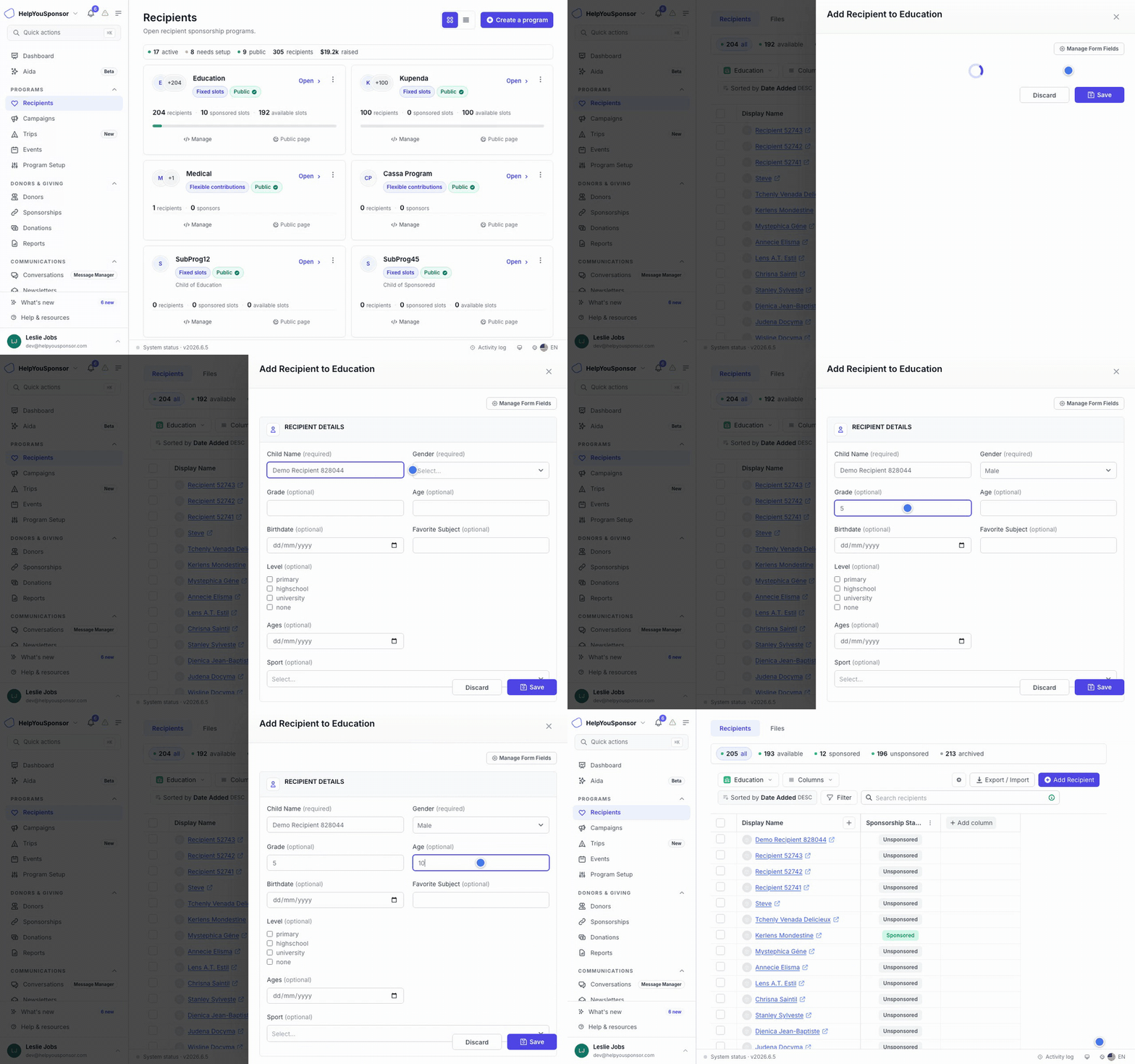
Walkthrough: adding a recipient to a program.
Add One Recipient to a Program
Use this workflow when your team already has the recipient details and wants to add the record directly in Gratona.
Open the recipient table for the program you are updating.
Select Add Recipient.
Complete the required recipient details.
Review the sponsorship settings that apply to the program.
Add tags when your program uses tags for grouping or reporting.
Select Save.
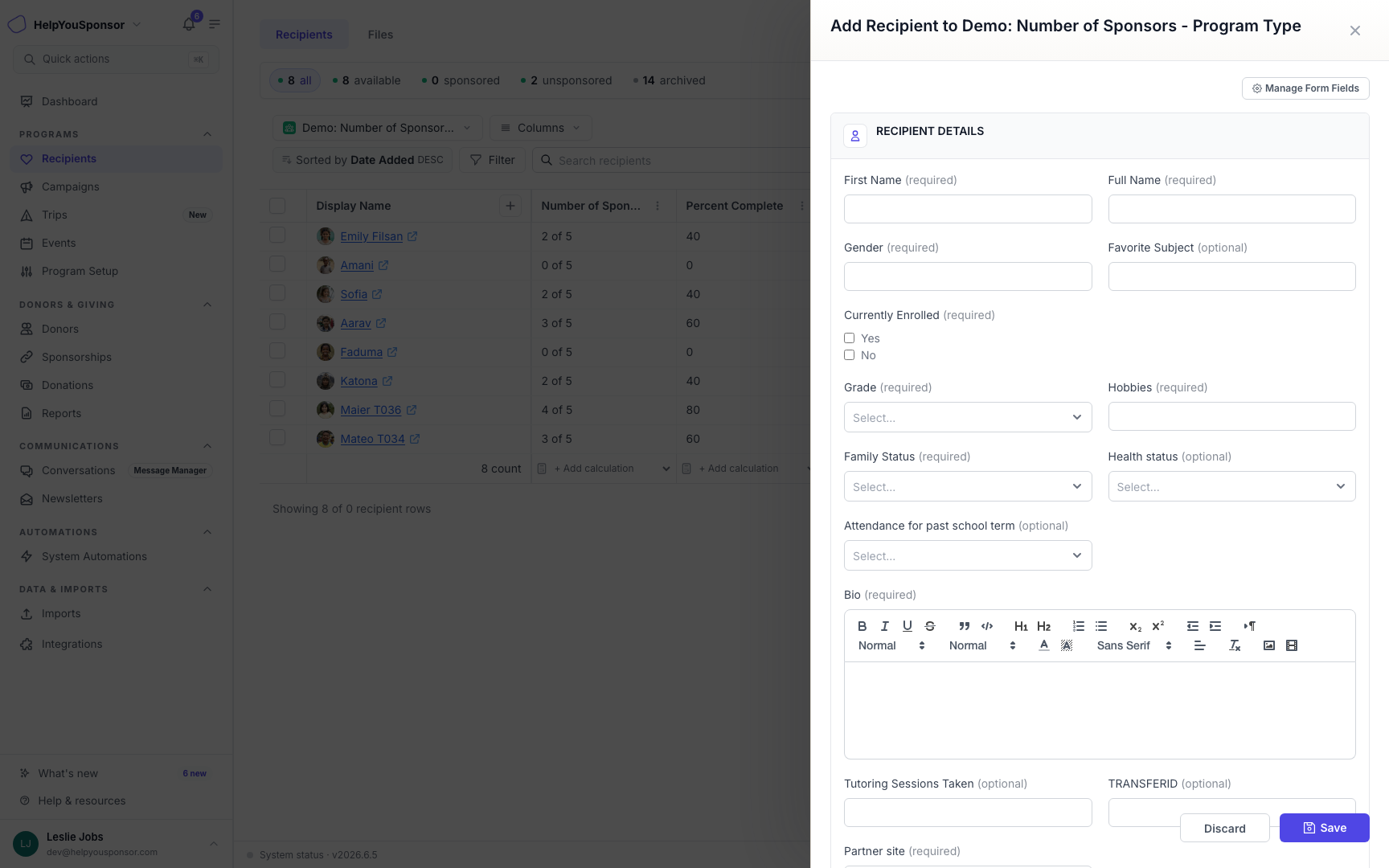
The Add Recipient drawer uses the recipient form fields assigned to the selected program.
After saving, Gratona closes the drawer, refreshes the recipient table, and updates the program statistics.
This guide focuses on sponsorship program recipients. In a campaign context, the shared table and add drawer use Designation; in a peer-to-peer context, they use Fundraiser. Complete the fields configured for that program and select Save.
Fill it in from a photo or document
When the recipient's information is already on paper, use AI Intake instead of typing it. In the Add Recipient drawer, select Scan or upload under Have it on paper?, or dismiss the banner and use the compact Fill from a photo or document link. AI Intake reads the pages into a draft that you review and save; it never creates the recipient until you save. See Add recipients or donors from a photo or document (AI Intake).
Complete the Right Fields
Required fields are marked in the drawer. Gratona will not save the recipient until required fields are complete.
The drawer can include:
profile fields from the recipient form
sponsorship settings, such as sponsor count or sponsorship amount, depending on the program type
Portal Email when recipient portal login is enabled for the program
tags when tags are available for the program
If the drawer says No Recipient Fields found, update the program's recipient form before adding recipients.
Change the Fields You Collect
Use Manage Form Fields when the add-recipient form does not collect the information your team needs.
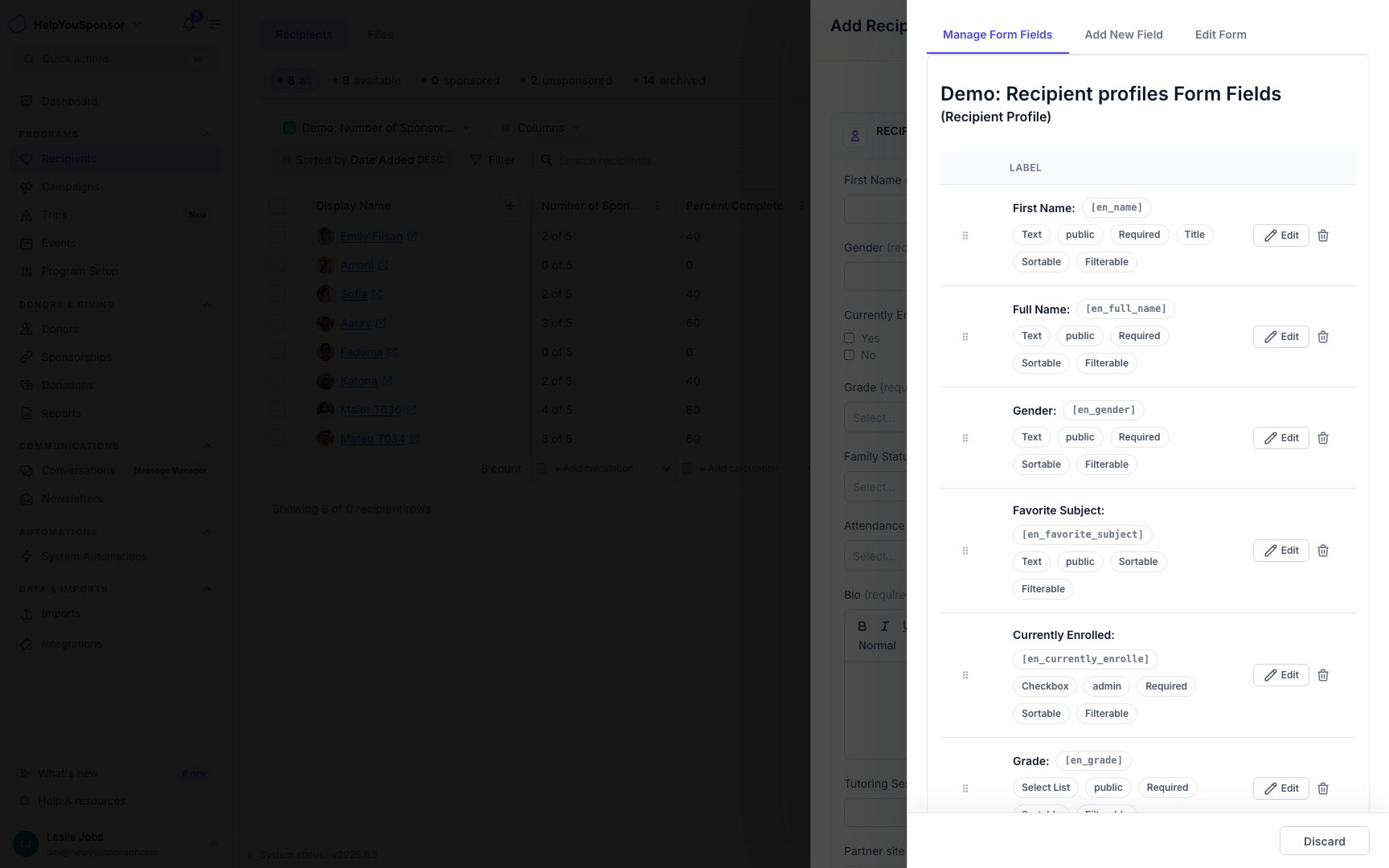
Manage Form Fields changes the recipient profile form used by the program.
Changing form fields updates the program form, not only the one recipient you are adding. Use this when you want future recipient records in the program to collect different fields, required fields, sortable fields, or filterable fields.
See Program Forms for the full form setup workflow.
Let Someone Add Recipients Without Admin Access
Use External Data Entry when someone outside your admin workspace needs to submit recipient records for a program.
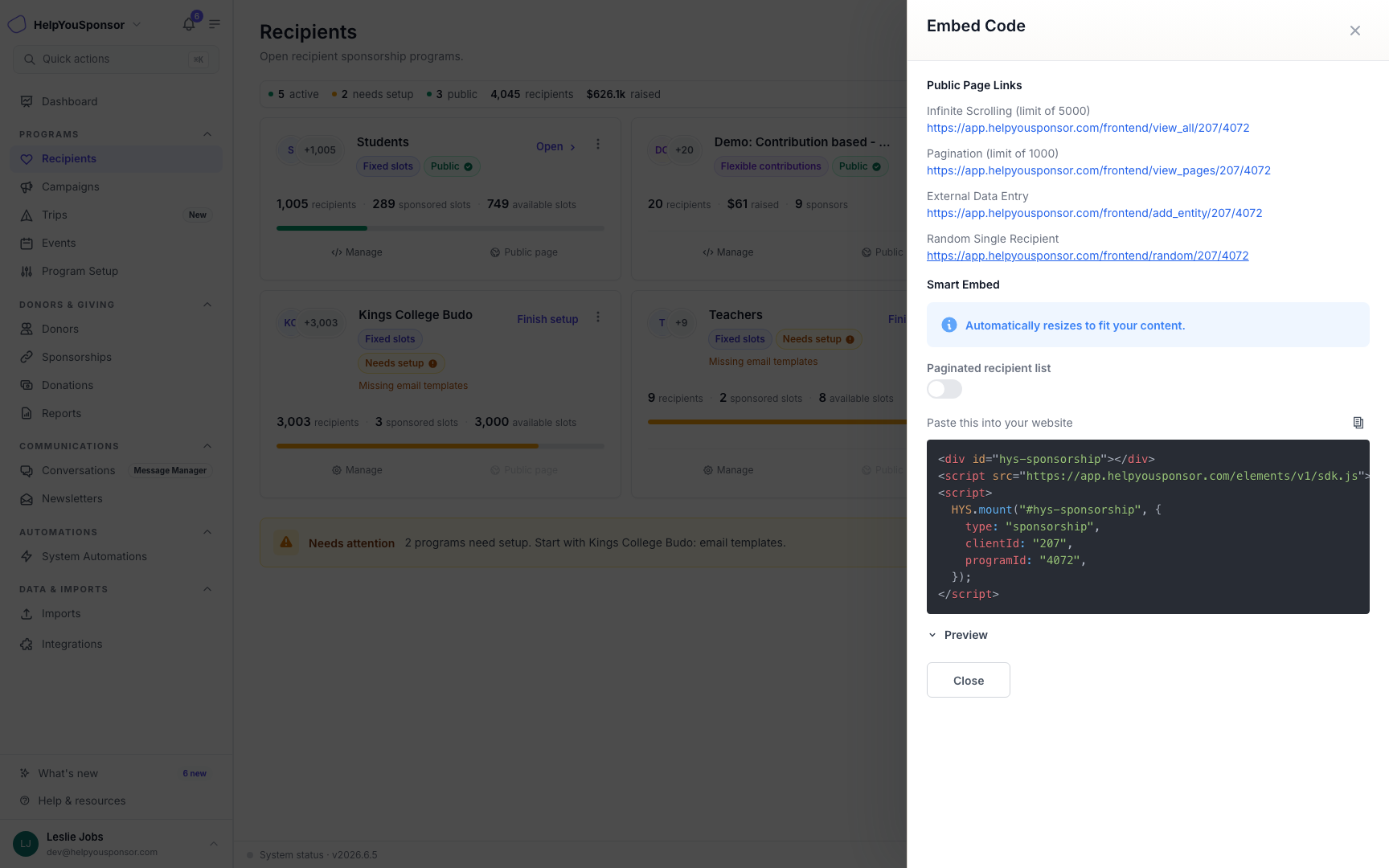
The External Data Entry link opens a public form for adding recipient records to the program.
The External Data Entry form uses the program's recipient form fields. Share this link only with people who should be able to submit recipient records for that program.
External Data Entry links are managed from the program's Website & Embed tools. See Website & Embed for the full sharing workflow.
Permissions and Setup
Your role controls whether you can add recipients, manage form fields, or share external data entry links. Program setup can also affect the add-recipient workflow. If a program still needs required setup steps, finish setup before adding recipients.