
Add gift notes and other donation custom fields
Updated 2 weeks ago
Use the Donation custom fields manager on the Donations page to collect extra information with each gift, such as a donor-entered gift note. Each answer is saved with the individual donation, so two gifts from the same donor can carry different notes. These are donation fields, not the donor-profile fields managed in Program Settings.
Before you start
The Custom fields button on the Donations page appears only for staff with the Manage program and system settings permission. You also need access to Donations.
Checkout visibility needs to be available for your account. If you do not see Visible to in the field editor, contact support. Your fields still collect answers on staff donation forms.
Open the custom fields manager
Go to Donations.
Select Custom fields in the worksheet toolbar.
The Donation custom fields drawer opens with the subtitle Collect information with each gift. It lists every donation custom field in your account.

The Custom fields button sits in the Donations toolbar beside Reports.
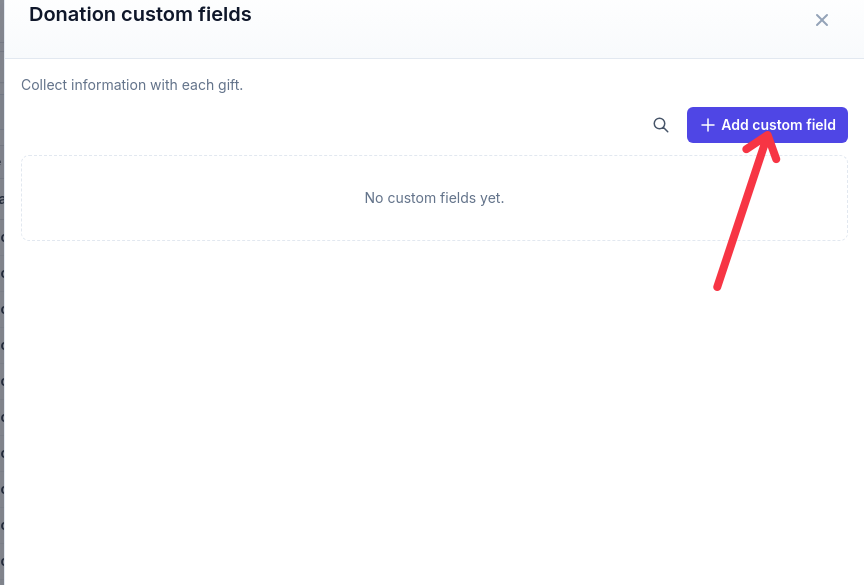
The Donation custom fields drawer before any fields are added.
Add a gift note field
This example adds an optional long-text field donors can use to leave a note with their gift.
Select Add custom field.
In Label, enter Gift note.
In Field type, choose Long text. The other types are Text, Number, Date, and Select list; a Select list asks for Options, separated by commas.
When Visible to is available, choose Everyone to put the note on donation checkout.
Leave Required when visible unchecked so donors can give without leaving a note.
Select Add field. The manager confirms Field added.
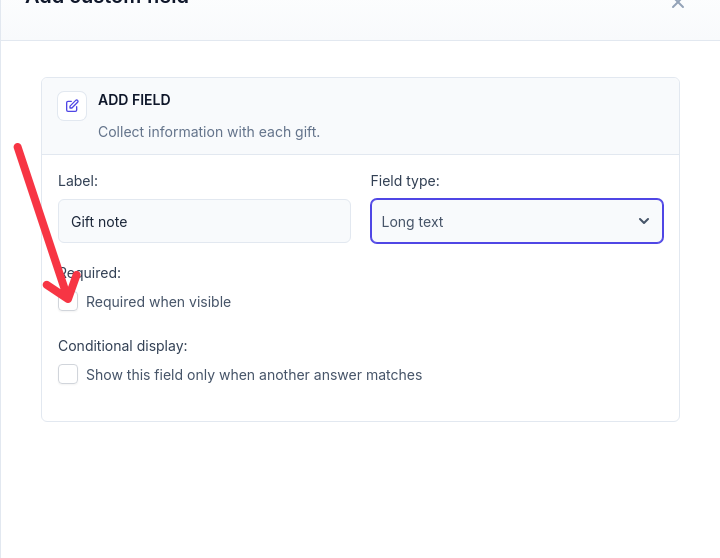
An optional Long text Gift note. This demo editor has no Visible to control; if it is available in your account, select Everyone to show the field at checkout.
Text and Long text answers can be up to 5,000 characters. Long text renders as a multi-line box; Text renders as a single-line input.
Choose who can see the field
When checkout visibility is available on your account, the field editor shows Visible to with three choices. New fields default to Admins only and to not required.
Everyone: anyone donating can fill out this field at checkout, and the answer is saved with the gift. Only fields set to Everyone appear on public donation checkout.
Donors and admins: the field stays off public checkout.
Admins only: only your team can use the field, and it stays off public checkout.
Show a field only when another answer matches
Conditional display reveals a field only after a donor or staff member picks a specific answer in an earlier Select list. For example, a Gift occasion Select list with the options In honor of, In memory of, General can reveal a Tribute message Long text field only when the answer is In memory of.
In the field editor, check Show this field only when another answer matches.
In Depends on, choose the Select list the field depends on.
In Show when answer is, choose one or more options that reveal the field. The field appears when any selected option matches. The editor summarizes the rule, for example Shown when Gift occasion is In memory of.
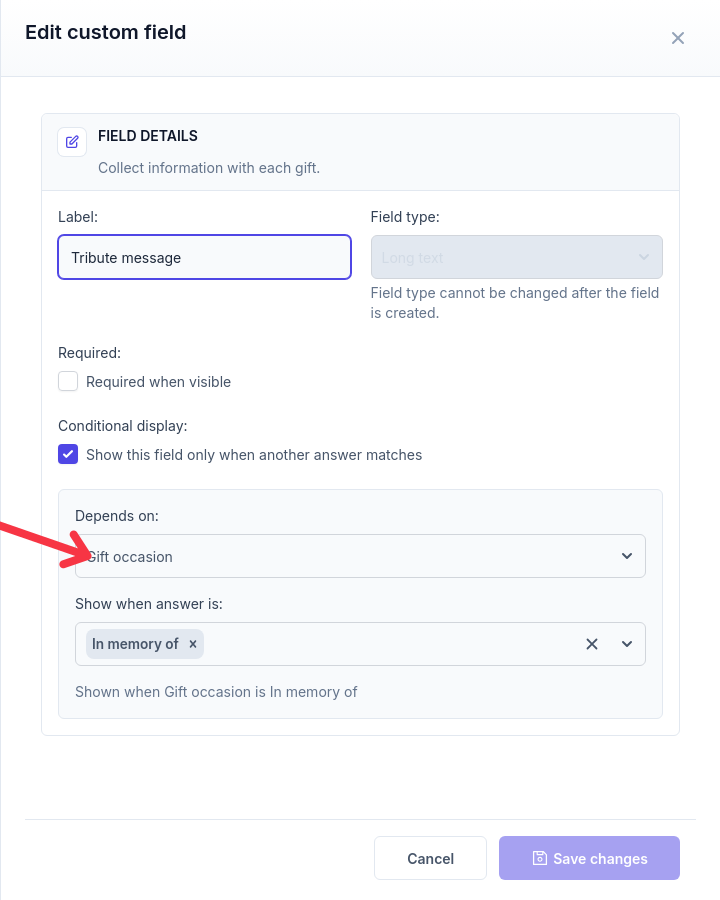
A conditional rule: Tribute message appears only when Gift occasion is In memory of.
The field you depend on must be a Select list that appears earlier in the form; otherwise Gratona shows Choose a select field earlier in this donation form. The source field must also be visible to everyone who can see the dependent field; Gratona shows The source field must be visible to everyone who can see the dependent field. when a rule conflicts. On checkout, both the parent Select list and the conditional field must be set to Everyone. Keep a conditional field after its source field when you reorder.
Required when visible applies only while the field is shown. A hidden conditional field does not block submission. Hiding a field removes its unsaved answer from the current form; it does not erase an answer already saved on an existing donation.
Edit, search, and reorder fields
Select the pencil icon on a field row to edit it. You can rename the field and change its requirement, conditional rule, and visibility. The field type is locked after creation (Field type cannot be changed after the field is created.), and a Select list's options are locked too (Options cannot be changed after the field is created.). Select Save changes to finish; closing an editor with unsaved changes asks Discard unsaved changes? and the manager confirms Field updated. after saving.
The Search fields box matches field labels and types, and Clear search removes the filter. To reorder, drag a row or use the Move up and down arrows; Gratona confirms each move, for example Gift note moved to position 2. Clear the search first, because reordering is disabled while a filter is active. If a saved order would put a conditional field before the field it depends on, the drawer shows an error with a Reload fields button and the reorder is not kept.
The saved order is the order fields appear in when they render: on the staff Add Donation and Edit Donation forms, and on checkout for the fields visible there. There is no delete or archive action: field definitions are kept so past answers stay readable. If the field list fails to load, the drawer shows Unable to load donation fields. with a Retry button.
Enter and read answers
Staff enter answers under Custom fields in Add Donation and Edit Donation, regardless of the field's visibility setting. Conditional rules determine which fields appear. Answers save with the individual gift when staff record or save the donation.
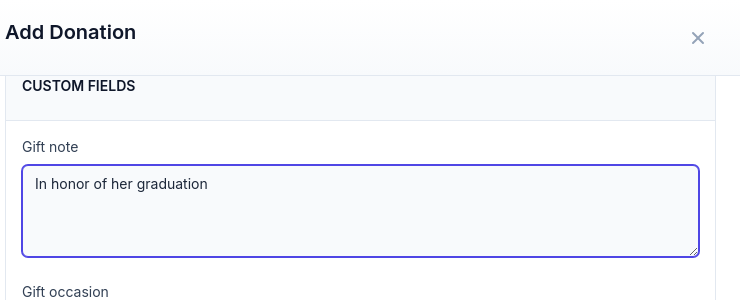
Entering a gift note under Custom fields while recording a donation.
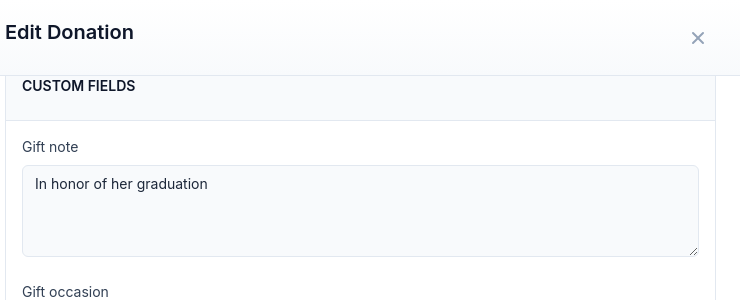
Reviewing the saved answer in Edit Donation > Custom fields.
Donors meet these fields when they give: fields set to Everyone appear on public donation checkout in a section headed About your gift with the note Your answers are saved with this donation. Fields set to Donors and admins or Admins only stay off public checkout.
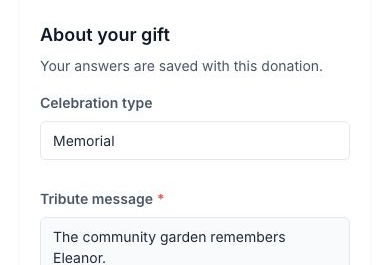
Example of donation fields in About your gift on checkout. This demo uses a conditional Tribute message.
Staff can review and update saved answers through Edit Donation, under Custom fields.
Editing fields later
Renaming a field changes the label shown with answers everywhere, including on past gifts. The saved answers themselves are stored with each donation and are not rewritten.
Making a field Required when visible does not force older gifts to be backfilled when other details are edited; untouched historical answers are preserved.
Staff can add donation custom fields as worksheet columns and choose them when building donation reports or CSV exports.
Related guide
To record and review gifts, see Donations Table.